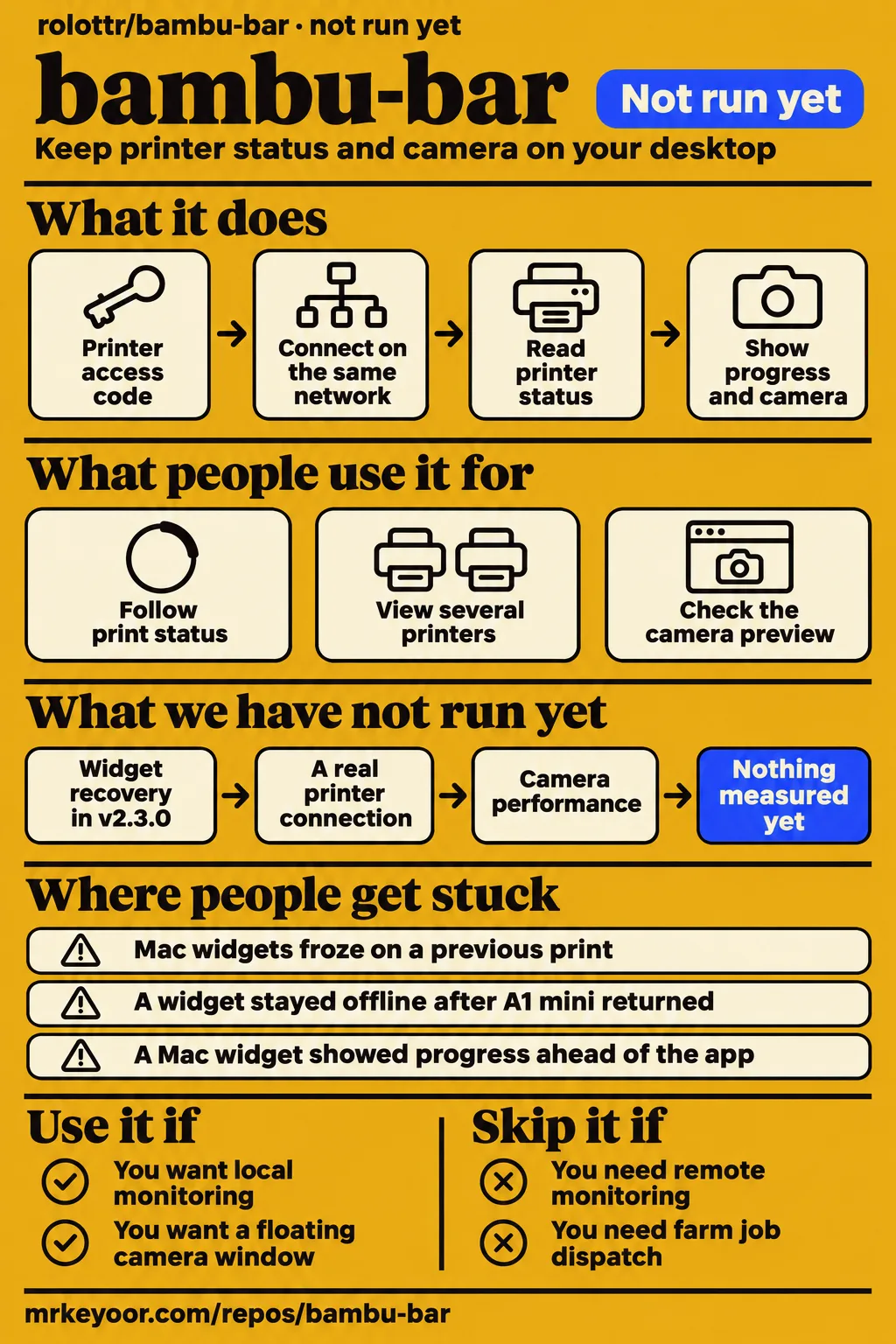
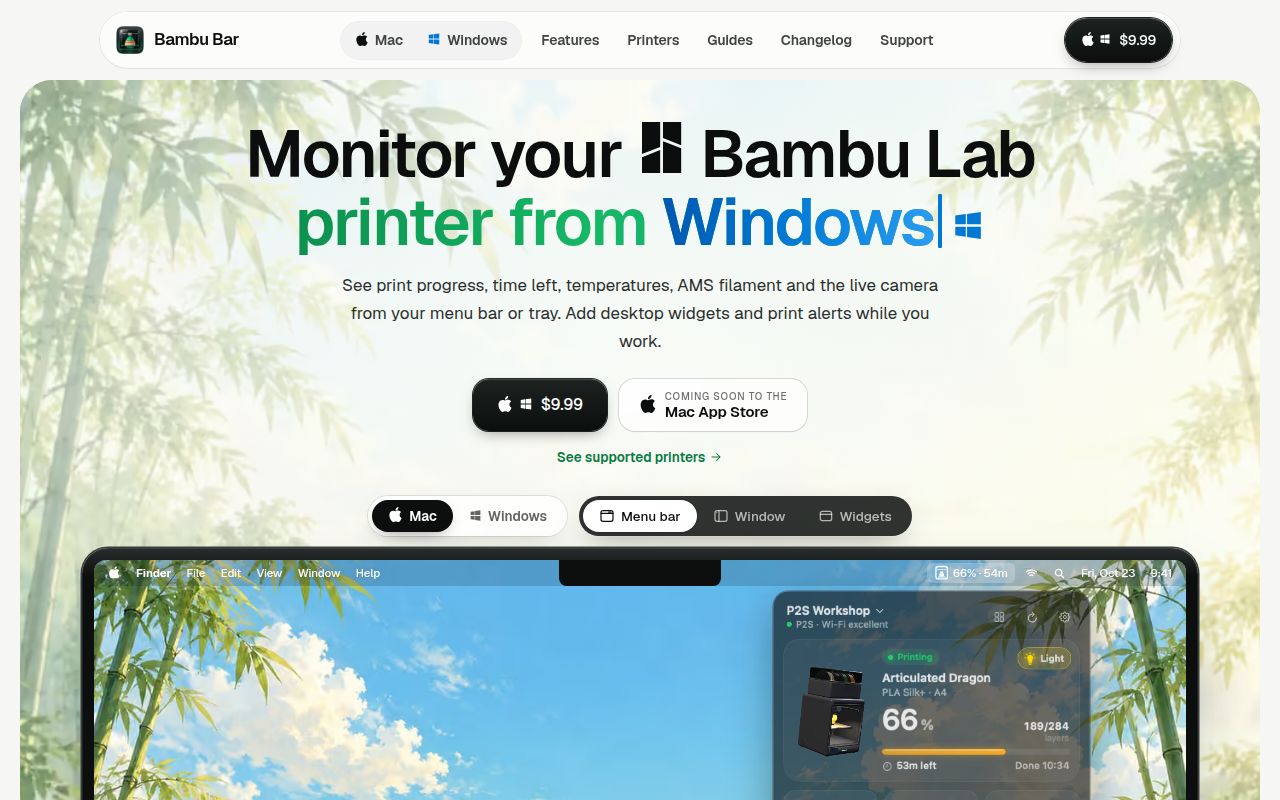
Bambu Bar keeps a Bambu Lab printer's status and camera on your desktop without keeping the slicer open. Use it if you want local monitoring while you work on a Mac or Windows PC. Skip it if you need remote access or job dispatch. Our sandbox skipped execution, so this is a source-based review, with particular attention to the difference between a current app window and a current Mac widget.
What people use bambu-bar for
Bambu Bar connects directly to Bambu Lab printers on the same network and shows progress, temperatures and filament in a Mac menu bar or Windows tray panel. It is independent software, not a Bambu Lab product. The practical attraction is keeping a print visible while your main window belongs to CAD, a browser or another task. The project's getting-started guide describes connecting with the printer's access code, without signing in to a Bambu Lab account.
The panel and main window cover different amounts of detail. The camera can also occupy a floating window above your work. For several printers, the All Printers view puts failed and paused jobs first, then sorts the rest by soonest finish. That is a sensible arrangement for deciding which machine needs attention next. The multiple-printer guide describes viewing and controlling existing prints; slicing and sending the next job still belong to Bambu Studio or OrcaSlicer.
Monitoring is free; the optional $9.99 USD supporter purchase enables in-app update checks, automatic updates and a badge. The support page says one license activates one Mac and one PC, while the Mac App Store edition is distributed separately. My recommendation is to decide whether the free monitor solves your daily problem before buying the convenience of updates. Paying does not remove the printer-mode requirements for controls.
The clearest use reports involve watching real prints, and several distinguish working app monitoring from a widget that stopped following it. These are attributed accounts from the issue tracker, rather than results from our lab.
| Person and printer | What they did | Reported outcome |
|---|---|---|
| Contributor ptrl-design, P1S | Added camera views in a fork, including a floating window, and checked them through a full print | The maintainer requested a PR and later announced camera support in v2.0.0 in issue #1. |
| vallentcm, P1S | Followed successive prints with the app and a large desktop widget | The app kept updating, but the widget froze on the previous successful print and became blank after being added again in issue #10. |
| ericsackett, A1 mini | Restarted a Mac while the printer was off, then turned the printer on | The app and menu bar recovered, but the medium widget stayed offline in issue #12. |
| gthrift, P1S | Asked to replace an unsupported chamber reading with fan information | The maintainer reported an app update after the request in issue #9. |
| Reporter of issue #14, H2D | Toggled the light from the Windows app and tray | Only the left light bar responded in Windows v2.3.0, while the printer's own switch worked, according to issue #14. |
The camera contribution is especially useful evidence because ptrl-design described the test boundary. The P1S check included a full print with the persistent-camera setting on and off. The initial RTSPS checks used a server rather than real X1, H2 or P2S hardware. That distinction matters when a contribution's successful P1S result gets repeated as proof for every supported camera. The maintainer's acceptance establishes that camera support shipped, not that the contributor tested every printer.
What happened when we ran it
Our 2026-11-17 sandbox attempt at commit 0a09d44 did not run Bambu Bar: the harness had no supported ecosystem for its C# classification and recorded no Dockerfile. The recorded sandbox configuration was 3 CPUs and 8 GB RAM, with image listed as n/a. Those resources describe the sandbox, not an app requirement or measured consumption.
| Recorded check | Result | What it means |
|---|---|---|
| Sandbox execution | NOT RUN: unsupported ecosystem, language C#; no Dockerfile | No installation, build or test result was produced. |
| Sandbox configuration | 3 CPUs, 8 GB RAM; image n/a | No actual runtime or operating-system version follows from this configuration. |
| Separate hands-on safety step | FAILED: none of compose.yaml, compose.yml, docker-compose.yaml or docker-compose.yml exists | The Compose-based attempt was blocked before an app workload. |
| Teardown | ok | Cleanup was recorded, not a successful deployment. |
The hands-on safety record requires a Compose file and calls the repository unsafe because it cannot find one of those filenames. Here, unsafe is the harness's admission label. It is not evidence of malicious code. The teardown record contains only the cleanup outcome.
A separate run summary says the project was deployed with its own Docker Compose. That conflicts with the failed safety step and the explicit NOT RUN result. We give the blocked step precedence and claim no deployment. The current README describes native Mac and Windows applications, so a container-oriented harness rejection is no reason to conclude that either desktop app is broken.
Where people get stuck: widgets can disagree with the app
Mac widget reports describe three different failures: stale completion, persistent offline status and progress ahead of the app. Treating them as one generic refresh problem loses the useful detail about what to check. The issue reports and the newer release notes also need to be read together.
| Report | What the thread records | Resolution evidence |
|---|---|---|
| #10, versions 2.0.0 through 2.1.1 | Restarting the Mac and power cycling the P1S appeared to help, then the large widget froze again | The closed thread ends with a promised patch, not a successful user retest. |
| #12, version 2.2.0 | A medium widget stayed offline after the A1 mini returned; relaunching the app did not refresh it | The maintainer suggested removing and adding the widget and described macOS idle periods. |
| #13, version 2.2.3 | geowebnerd reported progress ahead of the agreeing menu bar and app window | The supplied thread contains an acknowledgment. The later v2.3.0 release references this issue. |
| #14, Windows 2.3.0 | The H2D light button changed only the left light bar | The supplied open report contains no app-side fix. |
In vallentcm's large-widget report, the important moment came after changing build plates and starting the next print. The widget still showed the previous success. Removing it produced a blank replacement even though the app continued updating. That is a stronger reason to distrust a stale success indicator than a complaint that the display redraws slowly.
The maintainer's v2.3.0 release notes, published November 16, 2026, claim a widget fix and explicitly reference #13, #10 and #12. They say widgets now project progress for at most an hour after the app's last update, then show an update-age label. The app also spends its refresh allowance on selected changes. This is a specific response to the reports. It deserves inclusion beside them, without turning a release claim into an independently confirmed recovery.
For troubleshooting, first compare the widget with the app window. The widget guide says the app must stay running and that macOS decides redraw timing. If the app itself is offline, check local-network permission, the printer address and the access code using the setup guide. If only the widget is wrong, record its size and the app version. Those details distinguish the reported widget problems from a lost printer connection.
Camera setup and print controls use different switches
Camera access can work while the printer stays in cloud mode, but pause, stop and speed changes require LAN Only mode with Developer Mode. The camera guide makes a distinction that the short reply in issue #11 obscures: LAN Only Liveview is a camera switch, separate from full LAN Only mode. Turning on the former does not require giving up the printer's cloud binding.
For X1, H2, H3C, P2S and X2D cameras, the guide requires LAN Only Liveview on the printer. P1, A1 and A2L use a JPEG stream and need no extra printer switch. Both groups still need the global camera setting and the individual printer's camera setting enabled in Bambu Bar. A missing preview can therefore be a configuration problem rather than a missing feature.
The guide says Bambu Bar normally opens the stream only while the picture is visible. Keeping it connected throughout a print is optional and can occupy a connection Bambu Handy or Studio needs. If you switch between desktop monitoring and your phone, leave that setting off initially. The benefit is a connection available to another viewer; the trade-off is waiting for the preview to open when you bring it back.
Local printer data still allows licensing traffic
The support page says printer data stays local, while direct purchases use online checkout, activation and periodic license checks. These are separate promises. Someone choosing Bambu Bar to avoid sending print information through a cloud service should still expect the optional licensing system to contact its provider. The support explanation says it sends license and installation details, with no app analytics, advertising or tracking.
The setup guide says access codes are stored in the Mac keychain or Windows Credential Manager and sent only to their printer. It also says Bambu Bar reads the slicer's saved settings without changing them. When filing a report, follow the support page's request to include printer, firmware and app details, but never send the printer's access code or a license key. Local connections still involve credentials worth keeping out of a public issue.
Bambu Bar vs Bambu Studio, Bambu Handy and farm software
Keep Bambu Studio for slicing and sending jobs; choose Bambu Bar for a local desktop view, or Bambu Handy for checking from away from home. Those roles follow the project's comparison guides. They are not the outcome of a side-by-side performance test.
| Option | Choose it for | Decision boundary |
|---|---|---|
| Bambu Bar | Progress and camera views in the Mac menu bar or Windows tray | Monitoring computers and printers must share the local network. |
| Bambu Studio | Slicing and sending print jobs, with monitoring on its Device page | The Studio guide positions Bambu Bar as its companion for visibility while Studio is closed. |
| Bambu Handy | Phone-based monitoring away from home | The Handy guide describes access through Bambu Lab's cloud, rather than Bambu Bar's local connection. |
| Dedicated farm management software | Queues, dispatch, user assignments or cost tracking | The multiple-printer guide explicitly excludes these jobs from Bambu Bar. |
A shelf of printers does not automatically require a farm-management system. If you send jobs yourself and want to see which machine paused, Bambu Bar's trouble-first list fits that task. If your next question is which user's job should run on the next free printer, its documentation already gives the reason to choose another tool. Adding more status cards cannot supply a dispatch queue.
The Handy guide describes its Mac compatibility from the App Store listing, including the warning that it is not verified for macOS. Don't buy an Apple silicon Mac on the strength of that paragraph. The useful comparison here concerns where you monitor: at the desk on the printer's network, or away from it on a phone.
What the other reviews get wrong
The Bambu Bar homepage overstates certainty in several feature pitches unless you read the accompanying support guides. These corrections concern the project's own pages; the supplied material offers no basis for accusing an independent reviewer of fabricating a test.
The homepage's desktop pitch describes information as updated live. The widget guide explains that macOS schedules redraws and that progress is projected between snapshots. Historical issue reports show why that distinction matters, and v2.3.0 now claims a correction. An app receiving fresh printer data and a widget displaying fresh data are different things.
The homepage also uses the phrase "Grams, not guesses." The widget documentation says spool grams come from the AMS's own estimate. Displaying that estimate in grams is convenient, but it is no independent weighing of the spool. If a nearly empty spool determines whether you start an unattended job, the choice of unit alone should not settle your decision.
Its pause-and-speed pitch needs the LAN Only and Developer Mode requirement from the setup guide. Likewise, the H2D page presents a switchable chamber light, while the Windows v2.3.0 report describes only the left bar responding. That report qualifies one documented setup; it does not prove every H2D installation fails. The support page distinguishes hardware-checked models from H3C support based on a printer report. A broad compatibility headline should preserve that distinction.
Questions people ask
Mac widgets can lag while the app keeps updating because macOS controls widget redraws; the supplied reports also describe stale and offline states, and v2.3.0 claims changes addressing them. The widget guide and release notes provide the general explanation, while individual reports identify what actually happened to each user.
Why does my Bambu Bar widget stop updating while the app still updates?
The app and widget have separate update paths: the widget displays the app's last snapshot under macOS redraw scheduling. In issue #12, the maintainer suggested removing and adding the widget again. That is a suggested workaround, not a reported successful recovery. Keep the app running and compare the version with the v2.3.0 widget changes before treating the historical threads as current behavior.
Why is my widget showing progress ahead of the menu bar after updating to v2.2.3?
geowebnerd reported exactly this mismatch in issue #13. The v2.3.0 release attributes widget drift to refresh limits and changes how long progress is projected after an app update. The supplied issue extract only records the maintainer's acknowledgment, so the later release notes are the source for the claimed remedy.
Can I show fan information instead of an unsupported chamber temperature on my P1S?
The widget guide says large widgets use the second nozzle or part fan when a model lacks a chamber sensor. gthrift's issue #9 prompted a maintainer update after a constant 5C reading. The thread does not show a user confirming the resulting behavior or establish a user-selectable switch for every widget size.
Why does the H2D light button control only the left light bar on Windows?
The reporter of issue #14 observed this in Windows v2.3.0 from both app and tray, while the printer's own switch operated correctly. The supplied record gives no cause or app fix. It supports using the printer's switch as the working route in that reported setup, rather than diagnosing a failed light assembly.
Does Bambu Bar have a camera preview for checking print progress and errors?
Yes. The camera guide describes a panel preview, a Printer-page view and a separate floating window. Enable the global camera setting and the setting for the individual printer. On a Mac, Command+K opens the camera window; Windows uses Ctrl+K. This is a view of the printer's camera, not an external webcam feature.
Would the maintainer accept a pull request adding camera support?
The maintainer accepted that contribution route in issue #1: rolottr asked ptrl-design to open a PR, then announced camera support in v2.0.0. Camera support is already part of the app. That exchange demonstrates one accepted contribution, rather than a promise to accept any future camera change.
Why are pause, stop and speed controls locked?
Pause, resume, stop and speed changes require LAN Only mode with Developer Mode enabled on the printer, according to the setup guide. Reading status works in other modes. Buying a supporter license does not substitute for those printer settings; the license enables update-related benefits and a badge.
Does the camera need LAN Only mode or just LAN Only Liveview?
RTSPS models need LAN Only Liveview, not full LAN Only mode; P1, A1 and A2L models need neither extra camera switch, according to the camera guide. The guide is more precise than the short maintainer reply in issue #11, which calls the requirement LAN only mode. Use the model-specific instructions.
Why is the P1S or A1 camera picture choppy?
P1 and A-series cameras send low-rate still images, so the view advances in steps rather than smooth video, according to the camera guide. The guide attributes this to the camera's output. Changing the desktop viewer should not be treated as a documented way to increase the printer camera's capture rate.
Can Bambu Bar record video or make timelapses?
No. Bambu Bar displays and discards the camera stream; it does not save frames, record video or create timelapses. The camera guide assigns timelapses to the printer and Bambu Studio. Choose your recording workflow separately if reviewing footage after a failed print is the purpose of adding a viewer.
Can I monitor the camera from outside my home?
Bambu Bar's camera connection is local-network only. The camera guide directs people away from home to Bambu Handy. That makes Bambu Bar a desk companion for a local printer, rather than the documented route for checking a job while travelling.
How much does Bambu Bar cost, and what does the supporter license unlock?
The support page lists free use and an optional one-time $9.99 USD supporter purchase for in-app update checks, automatic updates and the Hero Supporter badge. It covers one Mac and one PC. Printer monitoring, controls and widgets work without a license, subject to the platform and printer requirements already described.
What we have not tested yet
We have not tested either desktop app, widget recovery in v2.3.0, a real printer connection, camera performance or command delivery. The sandbox was blocked, and the supplied records contain no app screenshots from our run. Installation, build, test duration, resource use and security-audit results are therefore unassessed. Actual runtime versions would require raw toolchain logs.
The initial contributor's real-camera experience was with a P1S; RTSPS testing in that contribution initially used a server. We have no independent camera latency or quality benchmark, no measured AMS grams accuracy and no multi-printer load result. The project's hardware compatibility statements belong to its maintainers, including the distinction between hardware checks and support inferred from an H3C report. We have not audited credential storage, certificate handling or licensing network traffic.
The supplied X search contains a relevant feature description from hsianghui, not a recorded trial. The relevant YouTube record has no transcript; the other supplied video extracts do not document this application's operation. They cannot supply missing hands-on evidence. No relevant Reddit account is supplied. GitHub stars and issues show attention and activity, not the number of dependable installations.
For a useful next check, run the current release on your intended computer and compare the app with its widget through a printer restart and a change between successive prints. Those are the transitions the community reports identify. A correct percentage halfway through one print would leave the more consequential failures unanswered.