pdfplumber review
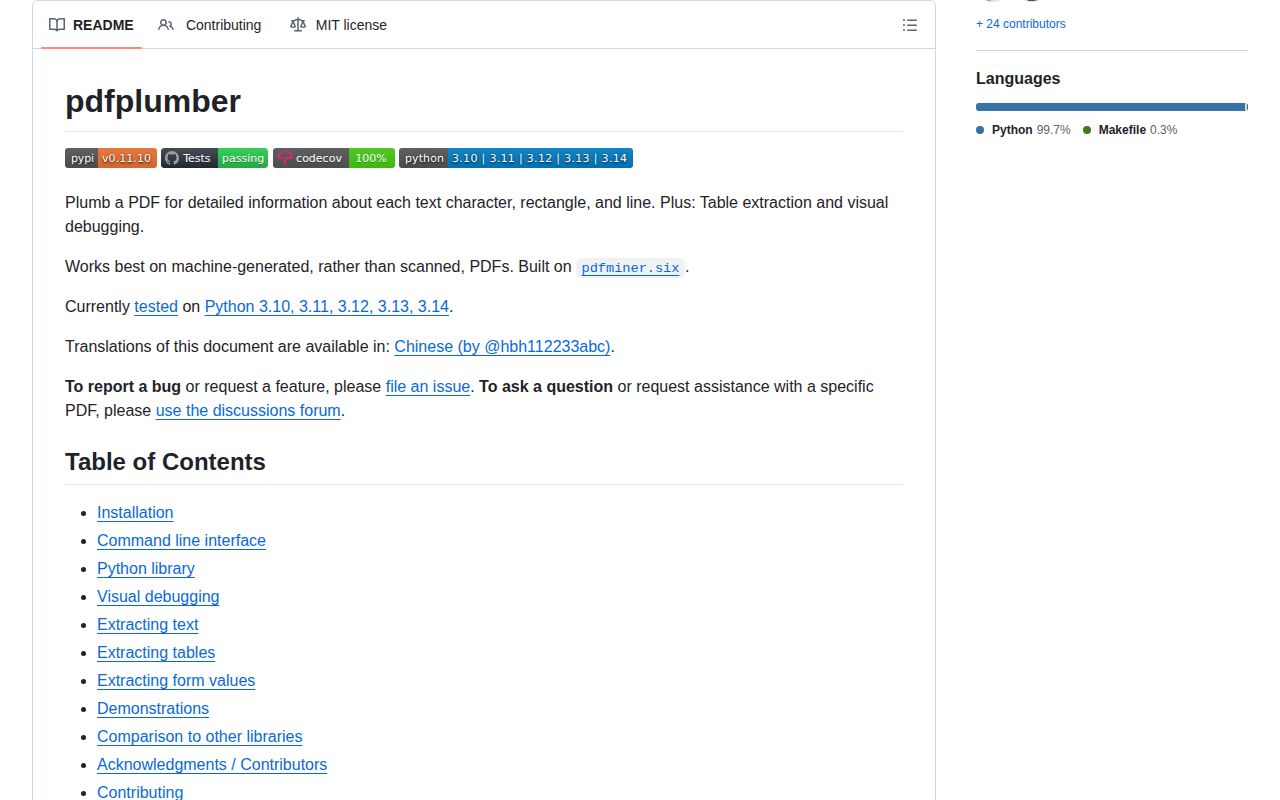
pdfplumber 0.11.10 exposes each PDF page as positioned characters, lines, rectangles, curves, images, and annotations. It groups those objects into words, searchable text, and table cells, while `PageImage` can draw the detected geometry over a rendered page. That combination is useful when a machine-generated report has columns or tables whose coordinates carry meaning. It does not run OCR, reconstruct embedded images, or modify PDF files. The current release pins `pdfminer.six` to 20260107 and raises the minimum Pillow and pypdfium2 versions.
pdfplumber 0.11.10 installed in 0.6 seconds, occupied 53 MB across 8 packages, imported in 0.51 seconds, and returned 0 pip-audit findings in our sandbox. Use it for coordinate-aware text and table work on digital PDFs; choose OCR for scans, pypdf for editing, or PyMuPDF when throughput dominates.
We installed it
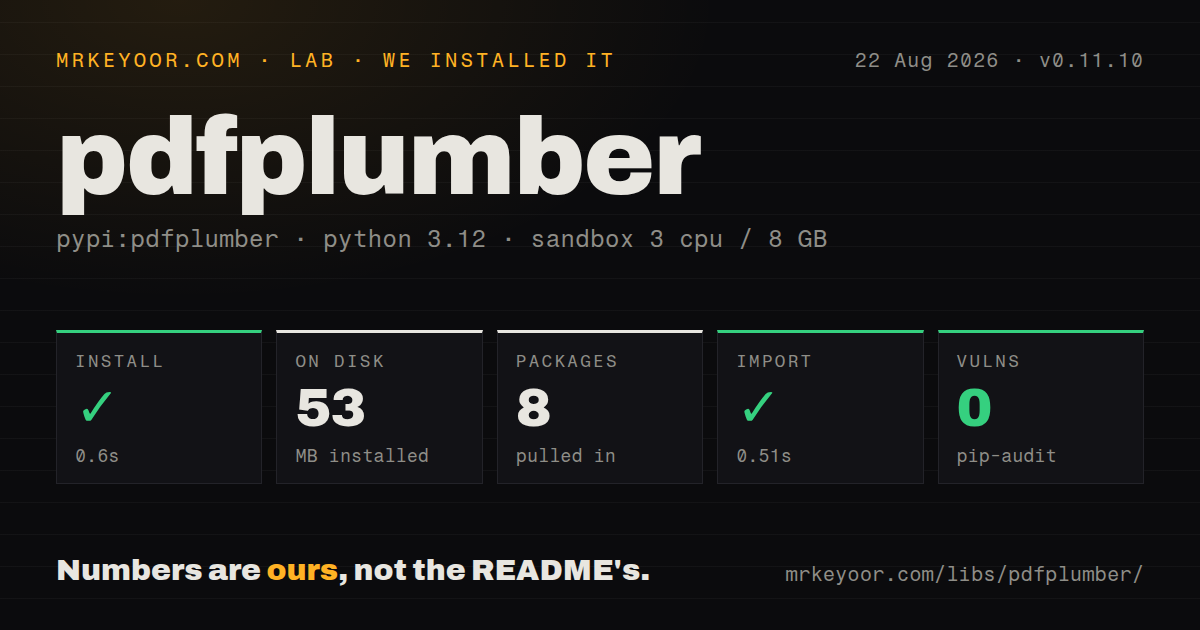
| Install | ✓ · 0.6s | 8 packages on disk · 53 MB |
| Import | ✓ | import pdfplumber in 0.51s · pure Python · py.typed · requires Python >=3.8 |
| Known vulns | 0 | (pip-audit) |
Answers from our run
Does pdfplumber install cleanly?
Yes. In a fresh container with an empty cache, pip install pdfplumber finished in 0.6s, leaving 8 packages and 53 MB on disk. pip-audit reported no known vulnerabilities.
What does pdfplumber need to run?
Python >=3.8, and nothing compiled: it is pure Python. In our run import pdfplumber succeeded in 0.51s, and the package ships py.typed for type checkers.
pdfplumber or pypdf: which should you use?
pypdf: Use it to merge, split, rotate, encrypt, fill, or otherwise modify PDF documents. pdfplumber 0.11.10 installed in 0.6 seconds, occupied 53 MB across 8 packages, imported in 0.51 seconds, and returned 0 pip-audit findings in our sandbox.
When should you not use pdfplumber?
Pages are scans or photographs. pdfplumber has no OCR, so a page can contain visible writing and still expose no characters.
Use it if
- Extraction needs character or word bounding boxes, font attributes, page numbers, and document coordinates.
- A digital report contains ruled tables or borderless columns that can be tuned with line, text, or explicit strategies.
- You need a saved debug image showing table edges, intersections, and cells over the source page.
- A form value can be found by locating a label and cropping a predictable rectangle beside it.
- Pages are scans or photographs. pdfplumber has no OCR, so a page can contain visible writing and still expose no characters.
- The task is merging, splitting, rotating, encrypting, signing, filling, or generating PDFs. pdfplumber is an extraction library, while pypdf covers many editing operations.
- Batch throughput matters more than coordinate inspection. The project README says PyMuPDF is substantially faster than the pdfminer.six route used here.
- Another package requires a different pdfminer.six release. Version 0.11.10 pins `pdfminer.six==20260107`, which can make one environment impossible to resolve.
- The pipeline cannot carry fixtures and per-document tuning. Borderless tables, mixed columns, repeated glyphs, and unusual text order often require crops, tolerances, deduplication, or strategy changes.
Setup reality
We installed pdfplumber 0.11.10 in 0.6 seconds in a fresh Python 3.12 container. The result was 8 packages using 53 MB. It has 3 direct dependencies, requires Python 3.8 or newer, is pure Python, includes py.typed, and uses the MIT license. pip-audit found 0 known vulnerabilities. import pdfplumber completed in 0.51 seconds.
Version 0.11.10 requires pdfminer.six==20260107, Pillow 12.2.0 or newer, and pypdfium2 5.9.0 or newer. The exact parser pin can conflict with another PDF package in a shared environment. Current page rendering uses pypdfium2, so old setup instructions centered on Wand or ImageMagick describe an earlier path. On a server, call PageImage.save(); show() expects a local image viewer.
Open each PDF with a context manager. A Page caches parsed layout and object lists to speed repeated access, which can retain substantial memory across a long document. Call page.close() after processing each page in a long-lived worker. Supply a password when needed. Invalid metadata produces warnings by default; strict_metadata=True turns those problems into exceptions suitable for a fail-closed batch.
Crop boxes use (x0, top, x1, bottom), with top and bottom measured downward from the page top. Table detection begins with lines and rectangle edges unless you select a text or explicit strategy. Crop to the likely table area before adjusting tolerances, then keep sample PDFs as regression fixtures. Since 0.11.10 changed parser and renderer floors, compare text, word coordinates, tables, and debug images before processing an archive with the new environment.
Patterns
Read text from one page extract-text
import pdfplumber

with pdfplumber.open('report.pdf') as pdf:
    page = pdf.pages[0]
    text = page.extract_text()
    print(text)
`extract_text()` can return `None` when a page has no extractable characters, including many scanned pages.
Set password and metadata policy open-protected-file
with pdfplumber.open(
    'protected.pdf',
    password=password,
    unicode_norm='NFKC',
    strict_metadata=True,
) as pdf:
    consume(pdf.pages[0])
NFKC changes compatibility characters, and strict metadata converts parsing warnings into exceptions.
Compare plain and layout text extract-layout-text
plain = page.extract_text(x_tolerance=2)
layout = page.extract_text(
    layout=True,
    x_tolerance_ratio=0.15,
)
Layout extraction is experimental and pads text to resemble page positions; do not treat it as a stable interchange format.
Read words with font details extract-positioned-words
words = page.extract_words(
    extra_attrs=['fontname', 'size'],
    return_chars=True,
)

for word in words:
    print(word['text'], word['x0'], word['top'], word['size'])
Requesting extra attributes also splits words where characters have different fonts or sizes.
Restrict extraction to a rectangle crop-region
header = page.crop((0, 0, page.width, 120))
print(header.extract_text())

body = page.within_bbox((40, 120, page.width - 40, page.height - 60))
`crop()` keeps overlapping objects and trims them; `within_bbox()` keeps only objects fully inside the box.
Read the largest detected table extract-table
table = page.extract_table()
if table is None:
    raise ValueError('no table found')

for row in table:
    print(row)
No detected table returns `None`, while empty cells inside a detected grid may also contain `None`.
Infer a table from aligned text extract-borderless-table
region = page.crop((40, 180, 560, 680))
settings = {
    'vertical_strategy': 'text',
    'horizontal_strategy': 'text',
    'min_words_vertical': 3,
    'text_x_tolerance': 2,
}
table = region.extract_table(settings)
Text strategy can classify prose as columns; crop first and tune against several representative pages.
Save table geometry as an image debug-table
image = page.to_image(resolution=150)
image.debug_tablefinder(settings)
image.save('table-debug.png')
The overlay draws edges, intersections, and cells; saving works on a headless server where `show()` cannot open a viewer.
Find a label and crop beside it search-by-label
matches = page.search(r'Invoice\s+No', regex=True, case=False)
if matches:
    hit = matches[0]
    value_box = (hit['x1'], hit['top'] - 2, page.width, hit['bottom'] + 2)
    print(page.within_bbox(value_box).extract_text())
Search coordinates support form-style extraction, but the search API is experimental and drops zero-width matches.
Remove doubled glyphs dedupe-characters
clean_page = page.dedupe_chars(
    tolerance=1,
    extra_attrs=('fontname', 'size'),
)
text = clean_page.extract_text()
Some PDFs fake heavier text by painting one glyph twice; deduplication removes near-identical character objects.
Flag an image-only page route-to-ocr
text = page.extract_text() or ''

if not page.chars and page.images:
    route_to_ocr(page.page_number)
else:
    consume(text)
This is a routing heuristic because an image is not proof of text; pdfplumber itself does not perform OCR.
Free page data in a long document release-page-cache
with pdfplumber.open('archive.pdf') as pdf:
    for page in pdf.pages:
        try:
            consume(page.extract_text())
        finally:
            page.close()
Each page caches layout and objects; closing processed pages limits retained data in a long-lived worker.
Alternatives
| Package | Registry | Pick it when |
|---|---|---|
| pypdf | PyPI | Use it to merge, split, rotate, encrypt, fill, or otherwise modify PDF documents. |
| pymupdf | PyPI | Use it when faster parsing, rendering, or PDF modification outweighs pdfplumber's table-debug workflow and its licensing fits. |
| camelot-py | PyPI | Use it when table extraction is the entire job and Camelot's lattice or stream approach matches the documents. |
More data guides
numpy · pandas · fsspec · pyarrow · lxml · sqlalchemy · the whole shelf →
How this guide is made: grounded in the library's documentation, release notes, changelog, and issue history, on a fixed rubric — not a hands-on install of every release. The 50 most-downloaded entries are additionally install-verified in clean containers. Corrections: contact the desk.