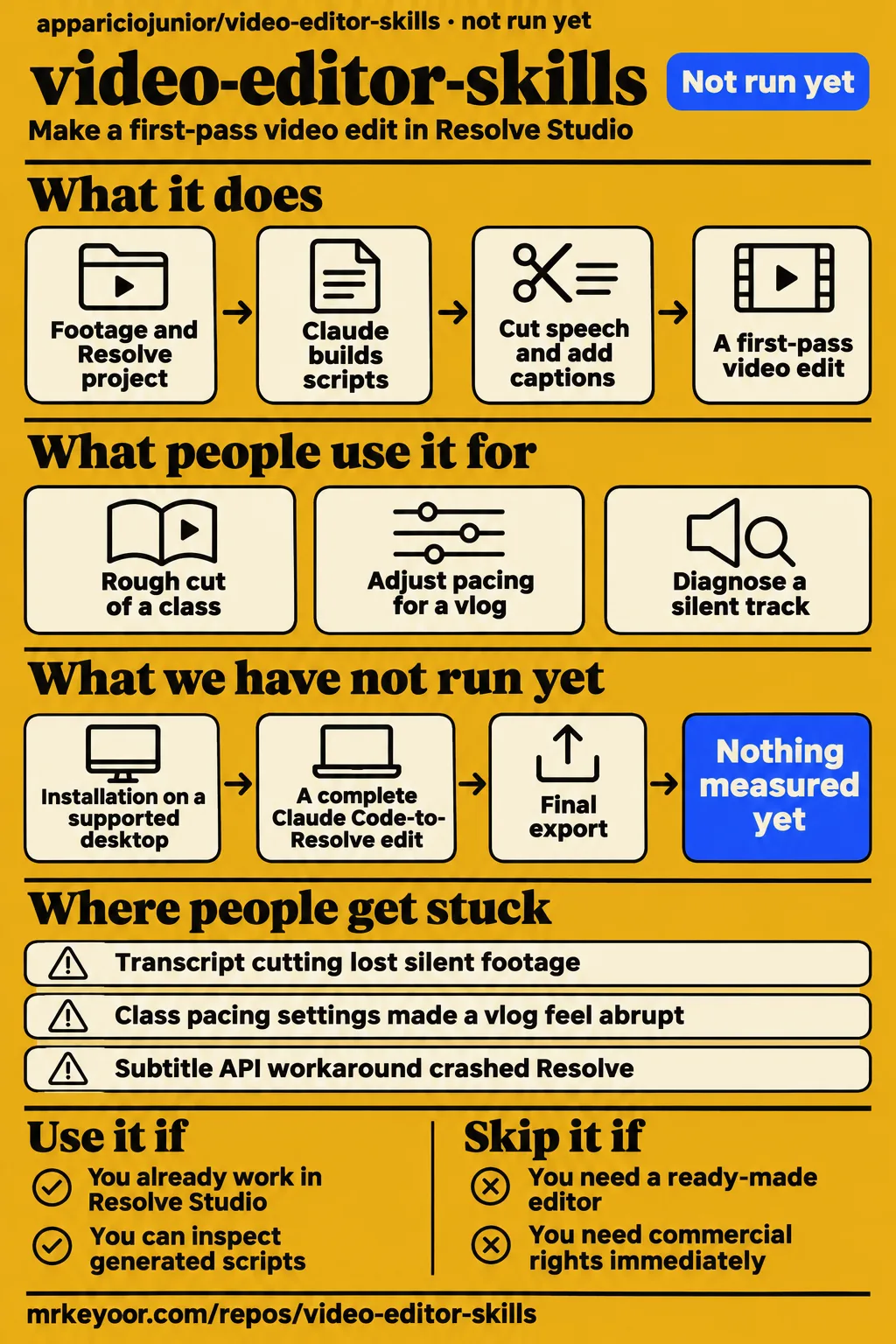
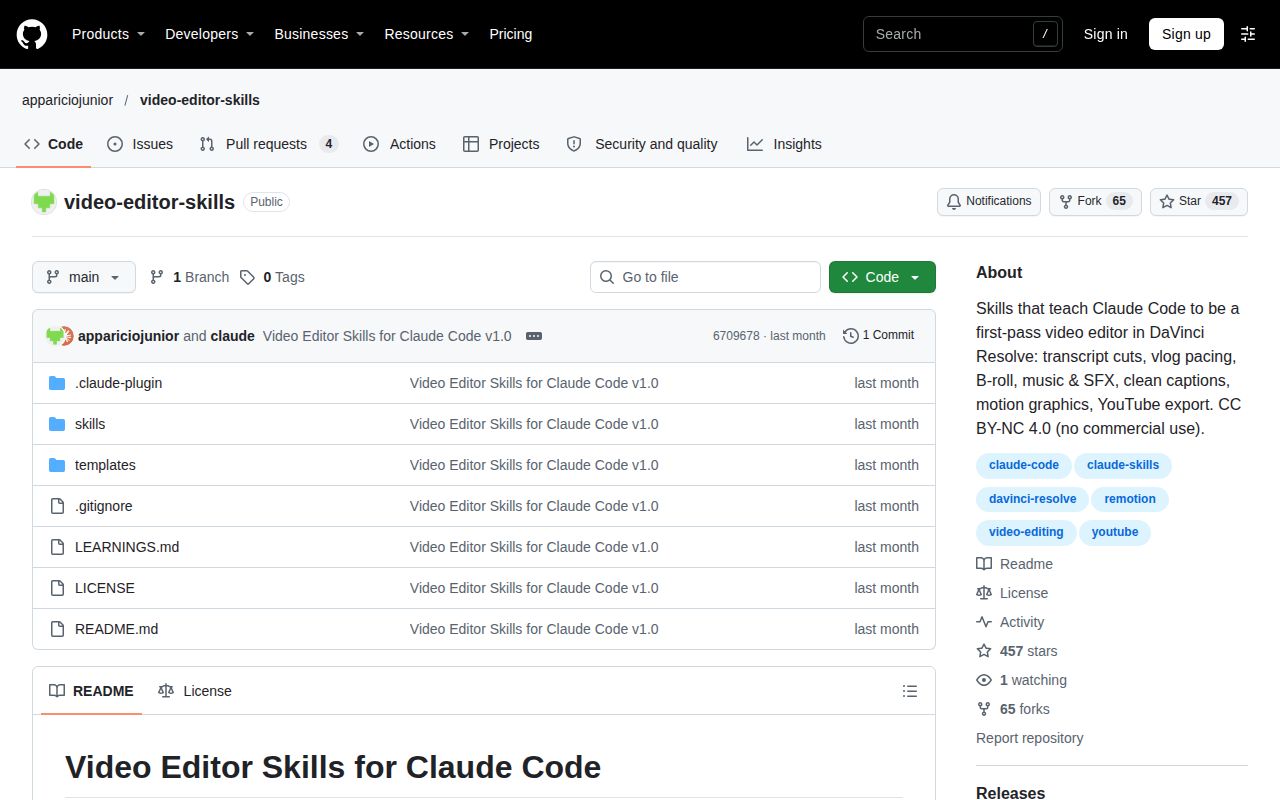
video-editor-skills gives Claude Code instructions for making a first-pass edit inside DaVinci Resolve Studio, with scripts built for your setup. Use it if you already edit in Resolve and want help assembling a personal vlog or class. Skip it if you need a ready-made application or commercial permission without contacting the author. The strongest evidence for that decision is the author's specific record of edits that went wrong, alongside the instructions for reviewing and correcting them. Project README
What people use video-editor-skills for
The author reports cutting a 34-minute class into 120 pieces instead of roughly 800 with volume-only cutting. The learning notes record a positive reaction to that less fragmented timeline. For someone already working in Resolve Studio, this gives transcript-based cutting a concrete purpose: assemble a first pass that can be judged for retained meaning, pacing and continuity. Fewer pieces describe the reported timeline; the useful editorial question is whether the right speech survived. Author's cutting notes
| What the author used it for | Reported outcome | What you should take from it |
|---|---|---|
| A transcript-based rough cut of a class | The author reports 120 pieces instead of roughly 800 on a 34-minute recording. Class cutting notes | Judge whether the retained speech makes sense before celebrating fewer cuts. |
| Different pacing for a class and a vlog | The author found tight class pauses abrupt in a vlog and documented longer vlog pauses. Pacing notes | Keep pacing settings specific to the kind of video. |
| Finding a transition inside B-roll | The author found a camera entering a bag and emerging at an airport after increasing inspection to two frames per second. B-roll inspection notes | Inspect the action within a clip before choosing where to cut it. |
| Diagnosing silent template music | The author traced silence to a track-level AI Music Remixer setting by rendering, correlating and inspecting the track. Template music diagnosis | Listen to a rendered sample and inspect track settings when the source music seems fine. |
The bag transition explains the appeal better than the feature list. Sampling five frames per clip produced choices the creator called "weird and wrong". At two frames per second, the author found a usable action: the camera goes into the bag, the image goes black, and the next scene emerges at the airport. The improvement came from seeing enough of the footage to understand what happened inside the clip. B-roll notes
What happened when we ran it
Our run assessed commit 6709678 on 2026-11-17 and recorded NOT RUN because the harness found no supported ecosystem, a null language and no Dockerfile. The recorded sandbox configuration was 3 CPUs and 8 GB RAM, with image listed as n/a. A separate hands-on safety step failed its Compose-file requirement, and teardown recorded "ok". These are the recorded outcomes of the assessment, distinct from the author's editing examples.
| Recorded check | Result | Meaning for this review |
|---|---|---|
| Build/test harness | NOT RUN: no supported ecosystem, language null, no Dockerfile | The harness stopped before installation, build or tests. |
| Separate hands-on safety step | FAILED: none of compose.yaml, compose.yml, docker-compose.yaml or docker-compose.yml exists | The lab's Compose-file requirement blocked that route. |
| Teardown | ok | Cleanup was recorded. |
The safety record uses the phrase "unsafe repo" because its rule requires a Compose file. That identifies the failed lab requirement. The README describes a package of instructions with no code and says Claude builds small scripts with the user. The relevant product workflow therefore starts with a Claude Code editing workspace and an existing Resolve project, rather than a documented Docker deployment. Package description
The pack also contains a run-summary sentence claiming deployment with the project's own Docker Compose. That sentence conflicts with the failed safety step and the explicit NOT RUN measurement. This review uses the stopped result. Naming the conflict matters because otherwise a reader could mistake a summary sentence for a completed deployment, then carry that assumption into the reported editing outcomes.
Where people get stuck: pacing and Resolve API behavior
The author's notes describe a subtitle API workaround that crashed Resolve. They also document pacing settings that suited a class but made a vlog feel abrupt, and a punch-in that held for 83 seconds because the timeline lacked a split after the punchline. These examples make the review task specific: inspect both what the generated edit keeps and how long each treatment lasts. Resolve and pacing notes
| Reported problem | Author's response or documented behavior |
|---|---|
| Class pause settings made a vlog feel abrupt | Class settings were 0.5 seconds maximum pause and 0.3 seconds kept. The vlog values were 1.0 and 0.6 seconds. |
| Scenes slammed into one another | Starting 0.1 seconds before speech was too tight. The author recommends 0.5 seconds before speech and 0.6 after, allowing more at the ending and stopping before the hand reaches the camera. |
| Zooms popped on scene changes | Open a new scene at 100% scale. A separate unsplit punch-in held for 83 seconds, prompting the rule to split after the punchline. |
| Transcript cutting lost silent footage | Treat zero-word clips, and clips transcribed as radio lyrics, as B-roll. |
| Subtitle timing was wrong | The author says subtitle import shifts to the first cue and recommends starting the file at 00:00. API insertion put subtitles after the timeline end, and a workaround crashed the editor. |
| Grade application failed | The author reports Timeline.ApplyGradeFromDRX failing in Resolve 21 and says the per-item node graph works. |
| Frame boundaries required care | The notes say AppendToTimeline uses an exclusive end, audio-only clips count frames at their own rate, and timecode counts 24 frames per second at 23.976. |
| Scripted renders required particular settings | The notes specify StartRendering([job], False), an output path without spaces, and restoring Deliver settings afterward. |
All rows above come from the author's learning notes. Read the API entries as reported behavior in that workflow. For a first evaluation, use a small section of speech together with a silent action clip and a scene change. That selection makes the author's reported failure modes easy to look for: over-tight speech, missing silent footage, visual pops and an effect that outlasts the line it was meant to emphasize.
Music problems need a rendered listening pass
The author reports a silent clip being boosted by 30 dB into hiss. Another recording had identical channels and almost nothing above 3 kHz, which the author attributed to a covered microphone. The notes report that EQ fixes the muffled sound and Voice Isolation helps, while describing EQ as outside the scriptable workflow. These examples call for listening to the source before applying the same audio treatment everywhere. Voice and sound notes
The music examples require different responses. In one edit, raising B-roll music from -19 to -16 LUFS and starting the rise during the speaker's tail improved the transition. Literal zipper sounds, cloth swooshes and a jet pass-by drew a negative reaction. A softer untuned swell, quiet room tone and the original clip sound worked for that edit. Those judgments belong to the author's documented examples. Music and sound-design notes
An exact-length music edit faded out 25 seconds early. Elsewhere, a template's AI Music Remixer silenced its music track; rendering, correlation and inspection of the track Inspector exposed the cause. A useful listening pass therefore crosses the last spoken line, the B-roll transition and the ending. The author's examples show why checking the timeline length alone misses an early fade or a silent track. Reported music failures
Human review must catch captions and story errors
The author's generated outro said the creator was going to a new country when the journey was actually home. That is a story error a person familiar with the footage needs to catch. The same notes describe damaged caption words, overlays covering a face and stale cached overlay frames. Review the meaning of the sequence alongside its technical assembly, using the footage and brief as the reference. Story, caption and overlay notes
Use this review checklist before accepting an edit:
- Read every caption cue. The author's filler filter removed the article "um" everywhere; "pro-product", "es--" and "Hããã" were also flagged as errors.
- Preserve the speaker's voice while correcting written grammar.
- Check the destination and meaning of the outro against the footage and brief, and respect places the creator wants kept private.
- Inspect B-roll as moving action, including clips without speech.
- Look for a face covered by overlays. The notes describe 16:9 designs covering the face in 4:3 footage.
- Reserve the bottom caption band so graphics and captions do not compete.
- Keep punctuation attached to the highlighted text instead of leaving a lone period on a line.
- Re-render changed overlays under a new name. The author reports stale cached frames when filenames were reused.
The checklist follows the author's recorded editing lessons. Its purpose is to turn a broad instruction such as "review the edit" into visible checks. Speech, silent footage, captions, graphics and story each need attention because the documented mistakes affected different parts of the result. The person accepting the edit should read the actual caption language and compare the sequence with what the creator intended to say.
Setup requires Studio and scripts made for your workspace
The README requires DaVinci Resolve Studio for external scripting, ffmpeg, Python 3.9+ and a speech-to-text API with word timestamps. Epidemic Sound MCP, Figma MCP, Node and Remotion are optional. The documented starting point is an empty Claude Code editing workspace, where the user asks to "set up my video editor" and answers questions about the camera, Resolve project and brand. Requirements and setup
The package contains instructions rather than bundled editing code. Claude reads the skills and builds scripts with the user for that setup. After setup, the README tells the user to place footage in the raw video folder, open the Resolve project and request an edit. Feedback goes into the workspace's CLAUDE.md. That makes the generated scripts and recorded preferences part of the working setup the user needs to understand. Documented workflow
The README assigns creation of system/keys.env to the user, with a speech-to-text API key stored there. It says Claude never reads or prints the file and that it must never be committed. Keep that responsibility distinct from asking Claude to generate the editing scripts: the setup instructions explicitly leave the secret-file step with the user. The later edit request begins after footage is supplied and the Resolve project is open. Key handling and use instructions
Safety promises and commercial permission need separate decisions
The README says raw footage stays unchanged, Resolve edits only add new timelines and clips, keys stay unprinted and publication requires the user. These are upstream operating rules for the agent. Read generated scripts against those rules before giving them access to an important project. Because Claude creates the scripts for each workspace, reviewing the resulting work belongs in the adoption decision alongside reading the skill files. Documented safety rules
The project specifies CC BY-NC 4.0 and directs commercial users to ask the author. Its README excludes selling the skills or a modified version, and using them in anything sold, including paid courses, templates, products or services. A paid client editor should settle permission before adopting the workflow. For the intended personal-use reader, the stated permission is to use, share and adapt with credit under that licence. Author's licence statement
video-editor-skills vs the alternatives people search
video-editor-skills targets Resolve Studio, skills-editor documents FFmpeg and Hyperframes, and ai-video-editor documents editable Timeline Studio projects. Choose the working environment before comparing feature lists. A personal vlog already organized in Resolve presents a different adoption decision from a motion video authored with HTML, CSS and GSAP. The table links each approach to its own supplied instructions so readers can inspect the relevant workflow. Resolve README
| Project | Documented approach | Pick it when |
|---|---|---|
| appariciojunior/video-editor-skills | Claude Code skills for first-pass editing in DaVinci Resolve Studio, with scripts built for the user's setup. Resolve workflow | Your personal vlog or class already belongs in Resolve and you will review the timeline. |
| orage-developers/skills-editor | Its video-editor skill covers FFmpeg edits and Hyperframes HTML/CSS/GSAP motion videos rendered with Chromium. FFmpeg and Hyperframes instructions | You want to investigate a rendering workflow built around those tools. |
| MartinDelophy/ai-video-editor | Its edit-timeline-studio instructions keep an editable Timeline Studio project as the source of truth. Timeline Studio instructions | You want to investigate reversible edits in Timeline Studio. |
The alternatives also describe their own execution and approval procedures. skills-editor includes environment checks, draft approval and delivery steps. Timeline Studio's instructions emphasize inspecting a project, reviewing changes and keeping edits reversible. Read those procedures before bringing footage into either environment. The practical choice starts with where the editable work should live and which setup responsibilities you are prepared to take on. skills-editor workflow, Timeline Studio workflow
Avoid confusing similarly named projects
The skills-review.com Video Editor listing describes an OpenClaw installation, while this repository identifies itself as Video Editor Skills for Claude Code. The listing tells readers to install from the ClawHub registry. Keep its installation count, security score and community badges attached to that listing. The repository considered here is appariciojunior/video-editor-skills, whose README describes Resolve Studio skills and scripts built for the user's workspace. OpenClaw listing, repository identity
The adjacent listing also asks about safety, cost, alternatives and installation. Those are useful adoption questions to answer here, provided the answers come from this repository's evidence. Its OpenClaw installation command and marketplace security assessment describe that listing's workflow. For this project, use the Claude Code setup instructions, the stated Studio requirement, the author's licence terms and the documented editing failures to decide what to inspect next. Listing questions, project instructions
FAQ
The documented workflow requires Resolve Studio and a speech-to-text API, and commercial use requires asking the author. The questions below come from the adjacent Video Editor listing; the answers concern appariciojunior/video-editor-skills. They focus on installation, generated scripts, costs, permission and the review work the author describes, rather than treating general editing tutorials or another project's demonstrations as evidence for these skills. Project requirements and licence
Is Video Editor safe to install?
The README's safety policy preserves raw footage, makes additive Resolve edits and prohibits printing keys. It also says nothing is published without the user. Inspect the scripts Claude creates against those rules, then review the resulting edit for the caption, B-roll and story errors documented by the author. The relevant responsibilities are both technical and editorial: protect the project and decide whether the assembled sequence says the right thing. Safety policy, editing failures
How much does Video Editor cost?
The skills are offered for non-commercial use with credit under CC BY-NC 4.0. The documented workflow requires Resolve Studio and a speech-to-text API, while music and graphics integrations are optional. Commercial users are directed to contact the author. Separate those permission terms from the services and software needed for your workspace when deciding whether this setup fits a personal project or paid work. Requirements and licensing
What are the best alternatives to Video Editor?
skills-editor documents FFmpeg and Hyperframes workflows, while ai-video-editor documents editable Timeline Studio projects. Choose according to the environment where you want to keep and revise the work. Resolve Studio users evaluating personal vlog or class rough cuts have a direct reason to inspect video-editor-skills; people looking for motion videos authored with web technologies or Timeline Studio project editing should start with the corresponding alternative's instructions. skills-editor, Timeline Studio instructions
How do I install Video Editor?
The README offers plugin installation or copying the skills into a Claude Code skills folder. Next, open an empty editing workspace and request setup so Claude can ask about the camera, Resolve project and brand and build scripts with you. Create the transcription-key file yourself, supply footage and open Resolve before requesting an edit. Installation supplies the instructions; the documented setup then creates the scripts for your workspace. Installation and use
What we have not tested yet
We did not run a complete Claude Code-to-Resolve edit. Installation on a supported desktop, script generation, transcription, caption import, final export and the README's safety promises have no completed lab assessment here. The 3 CPUs and 8 GB RAM describe the sandbox configuration, not an editing-system recommendation. Image n/a supplies no exact operating-system or runtime version; those details require raw toolchain logs. The measured checkout remains commit 6709678.
The author's learning notes supply the concrete editing outcomes and Resolve API reports, including the entry naming Resolve 21. The supplied source extracts are from main and do not demonstrate that every quoted passage matches the measured checkout. There is no independent reproduction, comparative output-quality test, setup duration, editing-time saving, total operating price, security audit or repeatability measurement across machines. The records also leave the completed correction of the early music fade, silent template track and hiss amplification unspecified.
The supplied evidence contains no project-specific issue discussion or independent hands-on video establishing the author's outcomes. The directory extract and adjacent search results cannot settle adoption, support responsiveness, compatibility across desktops or production reliability. The four score dimensions therefore stay unassessed. This revision concerns the supplied text and evidence; rendered layout, resolved links, recommendation modules and other site-template behavior have no assessment in these records.
For an evaluation, choose footage containing speech, a silent action and a clear ending, then ask the person who filmed it to judge the cut. Keep that judgment alongside the generated timeline and scripts. Check whether the edit retained the intended moments, preserved readable captions and told the right story before extending the workflow to a longer personal project. The author's reported mistakes provide the specific checks to make. Evaluation checks drawn from the learning notes