Short answer
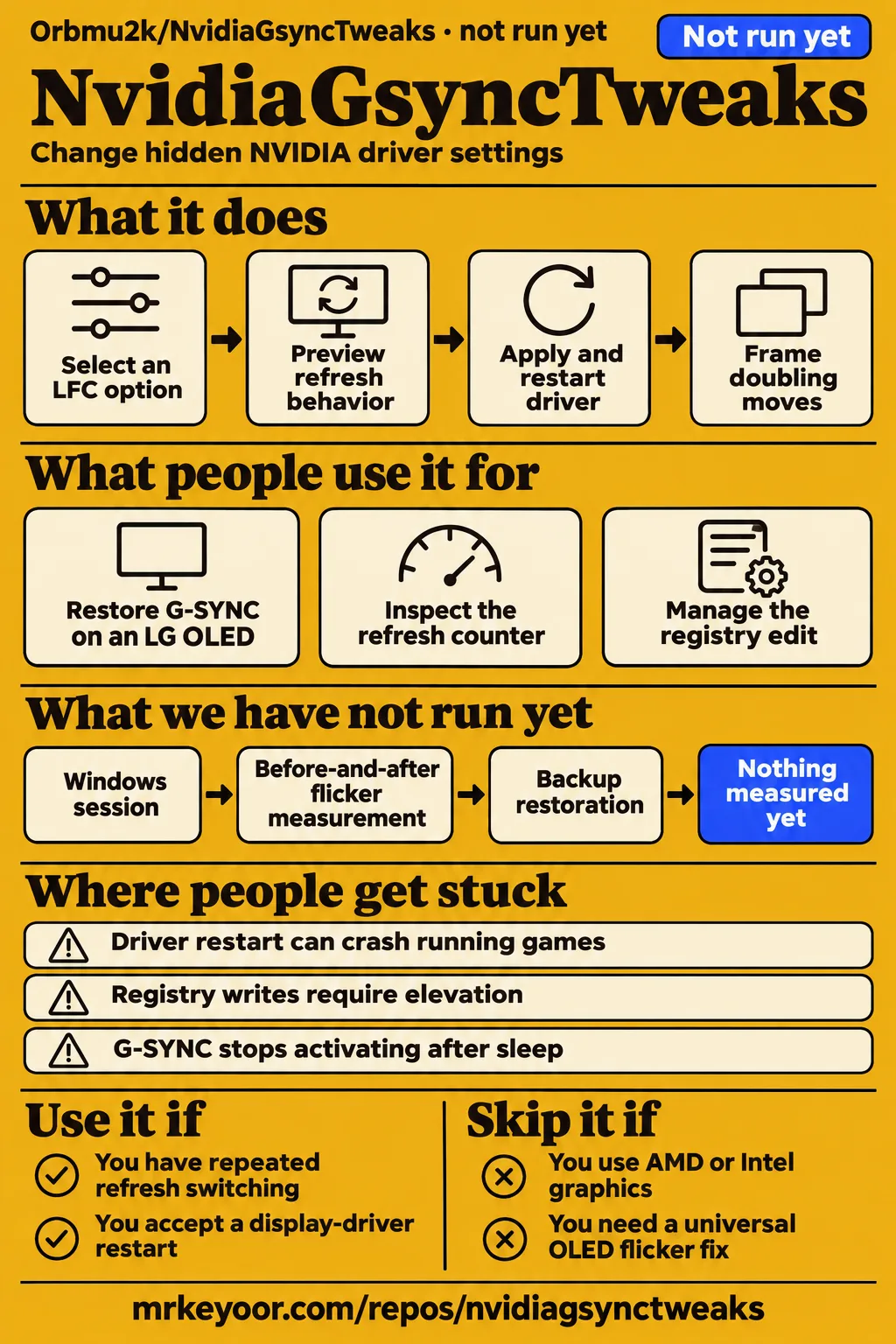
NvidiaGsyncTweaks targets NVIDIA displays that repeatedly switch between normal and doubled refresh near 60 FPS, according to its README. Consider it when your monitor's refresh counter shows that pattern and you accept changing hidden driver settings. Skip it if you use AMD or Intel graphics, need a universal OLED flicker remedy, or cannot interrupt GPU applications for a driver restart. The useful starting point is the visible refresh-switching symptom, because a general complaint that a game flickers can describe several different problems.
The review's decision rests on the documented LFC controls, an LG OLED owner's app report, a separate manual-edit account and the open driver-reset discussion. The README describes a specific transition between 1x and 2x refresh; the community questions also cover G-SYNC activation, V-Sync and Reflex. Those topics help identify the problem, but the LFC transition is the reason to consider this utility. The run section records what happened during our evaluation.
What you can do with NvidiaGsyncTweaks
NvidiaGsyncTweaks exposes documented pages for LFC, smoothing, VRR behavior, cursor handling and experimental detection in its README. Variable refresh rate, or VRR, lets a display's refresh follow the GPU's output. Low frame-rate compensation, or LFC, repeats frames at a higher refresh rate. The developer identifies vrrFrameSplitBehavior as the hidden setting behind the transition this utility targets and credits u/PykeFeed's registry-workaround discussion for identifying it.
The developer describes frame doubling beginning around 58-65 FPS on high-refresh monitors, above a usual VRR minimum of 48 Hz. Around 60 FPS, the display can alternate between 1x at 60 Hz and 2x at 120 Hz. The README associates that switching with OLED brightness flicker and stutter on other panels. Its lowest-multiplier option moves the transition toward the monitor's VRR minimum, while the preview uses the display's maximum refresh rate and minimum to illustrate the selected behavior.
The LFC page includes NVIDIA default, lowest multiplier and custom stickiness choices. Other documented pages address uneven frame times, DisplayPort and HDMI detection, refresh limits, cursor behavior and experimental content detection. For repeated 1x/2x switching, the LFC page has the direct connection described by the developer. Each setting displays its driver default, a Changed or Custom badge and a Reset control; potentially troublesome controls carry Use with care or Experimental labels.
NVIDIA Sync is a separate system-tray utility for launching applications and containers on remote Linux systems, with Windows, Mac and Ubuntu clients. NvidiaGsyncTweaks instead documents Windows 10 or 11 x64, an NVIDIA GPU and driver, and Windows App Runtime 2.x. The relevant executable here is NvidiaGsyncTweaks.exe, distributed in the project's release ZIP. The similar names lead to different products and installation instructions.
What people use NvidiaGsyncTweaks for
X user lionaut_ reports that NvidiaGsyncTweaks fixed flicker after they had stopped using G-SYNC on an LG OLED. Their post linking the repository says the flickering caused headaches and describes the result as "This finally fixed it." The practical use case is restoring a display feature the owner had abandoned because of an objectionable visual effect, rather than changing settings simply because the utility exposes them.
A second account concerns the manual route: renan_maniero reports using the registry edit successfully before the tool existed. That Portuguese-language account describes the underlying edit, while lionaut_ describes the app. For someone choosing between those routes, the app's documented preview, individual Reset controls and automatic restore points are concrete differences in how the change is managed. The language of the post identifies the testimony rather than establishing country-specific demand.
The README describes an observation procedure for suitable hardware: cap a game at 55 FPS and inspect the monitor's refresh counter. Its expected result is about 55 Hz after the change, compared with about 110 Hz before. Those figures come from the developer's checking procedure. They give the LFC use case an observable target: whether the display continues doubling refresh at that frame rate after the selected change.
What happened when we ran it
Our run at commit 050f26e stopped after two recorded seconds with a NOT RUN result. The build and test harness reported no supported ecosystem for C# and no Dockerfile. Its recorded configuration was 3 CPUs and 8 GB RAM, with image n/a, on November 24, 2026. No installation, build, test or display result was obtained. The two seconds measure the stopped evaluation, rather than application launch time or performance.
| Question | Answer | Verdict | Why |
|---|---|---|---|
| Which repository snapshot was evaluated? | commit 050f26e on November 24, 2026 | Snapshot identified | These are the harness's recorded revision and evaluation date |
| Did application execution begin? | NOT RUN: no supported ecosystem, language C#; no Dockerfile | Stopped before execution | Installation, build and test fields contain no results |
| What resources were configured? | 3 CPUs, 8 GB RAM; image n/a | Configuration recorded | These values describe the evaluation environment |
| Did the deployment safety step pass? | FAILED: no supported Compose filename existed | Prerequisite failed | The safety rule required a Compose file |
| What did cleanup report? | Teardown: ok | Cleanup completed | This is the recorded teardown outcome |
The safety error names all four missing filenames: compose.yaml, compose.yml, docker-compose.yaml and docker-compose.yml. Its wording includes "unsafe repo" because that workflow required a Compose file. This was a deployment prerequisite failure. The error identifies missing files; it records neither a Windows executable starting nor a registry write or display-driver operation, and it supplies no diagnosis of the Windows application's behavior.
The hands-on summary says "deployed with its own docker compose" and records every port bound to 127.0.0.1. That conflicts with the failed prerequisite and explicit NOT RUN result. The execution outcome here follows those records: the attempt stopped. Teardown's separate "ok" result records cleanup of the attempted workflow; it does not turn the contradictory summary into evidence of a successful deployment.
Where people get stuck: applying changes restarts the driver
The documented Apply & restart driver action requests administrator permission and restarts the display driver. The README warns that this can crash running games, video or GPU programs and instructs users to close them first. Starting the app itself needs no administrator rights. Browsing the controls and applying a change therefore have different permission requirements, and the named application action is the point at which the driver interruption occurs.
Issue #1 proposes toggling global G-SYNC through NVAPI instead of resetting the driver. The reporter argues that the global state should reread the relevant settings and questions whether the behavior appears in freely available NVAPI documentation. The checked issue is open with zero comments. The released README continues to specify Apply & restart driver, giving readers a concrete distinction between the documented workflow and the reporter's proposed alternative.
| Symptom or obstacle | Useful next step | Why that step fits |
|---|---|---|
| Refresh alternates between normal and doubled refresh near the described boundary | Compare the monitor's refresh counter with the README's LFC explanation | This is the behavior the documented change targets |
| You cannot approve administrator access | Stop before applying settings | Registry writes and driver restart require elevation |
| G-SYNC stops activating after sleep or alt-tabbing | Record when activation changes and inspect the refresh counter | The Blur Busters discussion concerns activation failures |
| You want to avoid the restart | Read issue #1 alongside the released workflow | The NVAPI toggle is the reporter's proposal |
In the Blur Busters discussion, wiseude describes frequent alt-tabbing while playing Kingdom Come: Deliverance 2 and a Dell S2721DGF refresh counter that stopped fluctuating. Restarting the game restored the fluctuating refresh reading. This is an activation observation: whether G-SYNC is operating at all. The README's LFC explanation concerns the different question of how refresh behaves while variable refresh is operating.
Permissions and recovery affect every display on the GPU
The settings apply to all monitors on that GPU. The README states this scope explicitly, so a desktop with an OLED gaming monitor and a second display shares the change across both screens. The app finds the graphics adapter's registry key automatically and shows it at the top of the interface. Its documented elevation request covers writing the settings and restarting the display driver.
The README documents an automatic restore point before every change, a Reset control for each setting and a Backups page for restoration. It places the plain .reg files in %LOCALAPPDATA%\NvidiaGsyncTweaks\Backups. These controls give a reader specific recovery items to locate before changing a value: the current setting, its Reset action and the saved backup. The displayed driver default and Changed or Custom badge identify which values differ from the default.
The checked release is v1.0.1
The checked release is v1.0.1, dated November 18, 2026, and its release page identifies commit 050f26e. The release notes require Windows App Runtime 2.x and administrator rights for registry writes and driver restart. They say the undocumented registry values were analyzed on NVIDIA driver 621.12. The README also names 621.12 as its tested driver, making that version the developer's stated reference point.
The November 24 repository snapshot records 196 stars, one open issue or pull request and a last push on November 18. These are repository metadata, while issue #1 contains the concrete driver-reset proposal discussed here. The README supplies English explanations of controls, permissions and recovery. The release notes add the runtime dependency and the driver version used for analysis, which are more useful setup details than the star count.
NvidiaGsyncTweaks vs manual registry editing, Profile Inspector and Special K
Manual registry editing is the closest alternative to the LFC workaround described here. TweakTown describes NvidiaGsyncTweaks as using the same workaround, and renan_maniero's account concerns the manual edit. The choice is between managing that edit yourself and using the app's documented controls, preview and restore points. Profile Inspector and Special K describe different jobs in their own repositories, so they belong in the comparison by task rather than by an invented performance ranking.
| Option | What its documentation or account describes | Pick it when |
|---|---|---|
| NvidiaGsyncTweaks | LFC controls, refresh preview and automatic restore points | Your symptom matches the documented LFC transition and you want an interface for the change |
| Manual registry edit | The same workaround, with renan_maniero reporting success before the tool existed | You understand the edit and want to manage it yourself |
| NVIDIA Profile Inspector | Global and per-application NVIDIA driver profiles | You need game-profile editing, import, export or restoration |
| Special K | Graphics fixes, performance analysis and correction tools for PC games | You need game-level graphics analysis or modification |
NVIDIA Profile Inspector edits global and per-application NVIDIA driver profiles. Its README describes creating profiles, assigning applications, importing and exporting .nip backups, and restoring settings or whole profiles. It requires Windows, a compatible NVIDIA driver, .NET Framework 4.8 and administrator privileges. That profile-oriented workflow fits managing settings for a particular game or application, while NvidiaGsyncTweaks documents the LFC control and its GPU-wide scope.
Special K describes graphics fixes, performance analysis and correction tools for PC games. Its repository README identifies the repository as the source for the code injection payload, SpecialK(32|64).dll, and says the SKIF frontend is maintained separately. Its documented focus is graphics modification and analysis inside games. That distinguishes the repository's purpose from NvidiaGsyncTweaks' interface for the driver's LFC and VRR settings.
Questions people ask
The README's lowest-multiplier option moves the LFC transition toward the monitor's VRR minimum. That is the direct answer to the trigger-point question behind this review. The other questions concern applying the change or distinguishing LFC switching from general G-SYNC configuration and activation. The answers below keep the documented application workflow separate from the specific observations and preferences reported in those discussions.
How does NvidiaGsyncTweaks change the LFC trigger point on a 240Hz G-SYNC monitor?
The README says lowest multiplier moves frame doubling toward the monitor's VRR minimum. Its example describes doubling around 58-65 FPS and a usual minimum of 48 Hz. A 240 Hz maximum is different from that minimum. The developer's checking procedure uses a 55 FPS cap and expected readings of about 55 Hz after the change, compared with about 110 Hz before.
Does applying NvidiaGsyncTweaks settings really require a driver reset?
The released instructions use Apply & restart driver. According to the README, Windows requests administrator permission, the screens flicker for a few seconds and the driver restarts without a reboot. Close GPU applications before that action. Issue #1 questions the reset requirement, but the README's named action remains the documented application workflow.
Could toggling global G-SYNC through NVAPI replace the driver reset?
Issue #1 proposes a global G-SYNC toggle through NVAPI so the driver rereads the relevant settings. The reporter calls this preferable to a reset and questions its documentation. The checked issue is open with zero comments. For applying settings through the released interface, the README names Apply & restart driver rather than a global-toggle procedure.
Should I enable V-Sync and cap FPS when using G-SYNC?
Ajido reports conflicting advice about V-Sync and frame caps in the Linus Tech Tips discussion. NvidiaGsyncTweaks' README addresses a narrower situation: it says caps do not solve the repeated LFC switching described near 60 FPS. Its separate 55 FPS procedure uses a cap to observe refresh behavior, rather than prescribing a general gaming configuration.
Should I turn G-SYNC on or off for the best performance?
Nicole-1893 says the answer depends on the setup, graphics settings and GPU-driver profile in the Overwatch discussion, recommending comparison of personal preferences. For NvidiaGsyncTweaks, the relevant starting condition is more specific: G-SYNC or VRR is operating, and the display repeatedly crosses the normal-to-doubled refresh boundary described in the README.
Should NVIDIA Reflex be set to On or On + Boost alongside G-SYNC?
OkrutnyStach-2543 recommends Reflex On in the Overwatch discussion and calls G-SYNC a preference. NvidiaGsyncTweaks' README organizes its controls around LFC, smoothing, VRR behavior, cursor handling and experimental detection. The forum recommendation answers a general game-setting question; the utility's documented LFC option addresses the separate normal-to-doubled refresh transition.
Why does G-SYNC sometimes stop working after alt-tabbing or monitor sleep?
Wiseude reports frequent alt-tabbing and restored G-SYNC operation after restarting the game in the Blur Busters discussion. Their monitor's fluctuating refresh counter was the observation used to judge activation. The discussion also raises monitor sleep. For this review, activation and LFC switching are separate symptoms: one concerns whether G-SYNC operates, the other its refresh multiplier.
How do I enable adaptive sync on the monitor before configuring G-SYNC in Windows?
The monitor-setup walkthrough directs viewers to enable adaptive sync on the monitor itself and look in the Game or Sync section of its on-screen menu. That is a display-menu step. NvidiaGsyncTweaks' README starts its own workflow with detecting the NVIDIA GPU and driver registry key, followed by selecting an LFC option and applying it.
Why does enabling G-SYNC produce red text on a Legion Y9000P 2023 even after driver and BIOS updates?
The Bilibili listing by 泰拉萌新Shiki reports red text on a Legion Y9000P 2023 i5 with G-SYNC enabled despite driver and BIOS updates; its title says disabling sync avoids the symptom. That reported condition differs from the repeated 1x/2x refresh switching described by NvidiaGsyncTweaks' README. The distinction identifies two different troubleshooting questions.
What we have not tested yet
Our lab has no executed Windows session, refresh trace or before-and-after flicker measurement for NvidiaGsyncTweaks. Elevation, backup restoration, multiple displays and driver updates remain outside this evaluation. The image label n/a establishes no operating-system or runtime version. The Compose prerequisite failure describes the evaluation environment rather than a defect in the Windows executable, and there are no application screenshots from our lab.
Lionaut_'s LG OLED report supplies neither a monitor model nor quantitative before-and-after results; renan_maniero's success concerns the manual registry edit. The checked issue contains no demonstrated NVAPI replacement procedure. The activation, V-Sync, Reflex and Legion discussions supply no controlled app comparison or established repair by this utility. The monitor-setup walkthrough concerns display controls rather than an app demonstration, and the repository metadata does not measure support quality or sustained compatibility.
The README also limits the proposed fix: the LFC transition moves rather than disappears, a game near 48 FPS can still flicker, and some OLED VRR flicker is inherent to the panel. NVIDIA can change or remove the undocumented settings; a clean driver installation may reset them. A useful next evaluation would identify Windows, driver, GPU and monitor versions, record refresh before and after one change in a repeatable scene, and exercise the documented recovery path.