xlsxwriter review
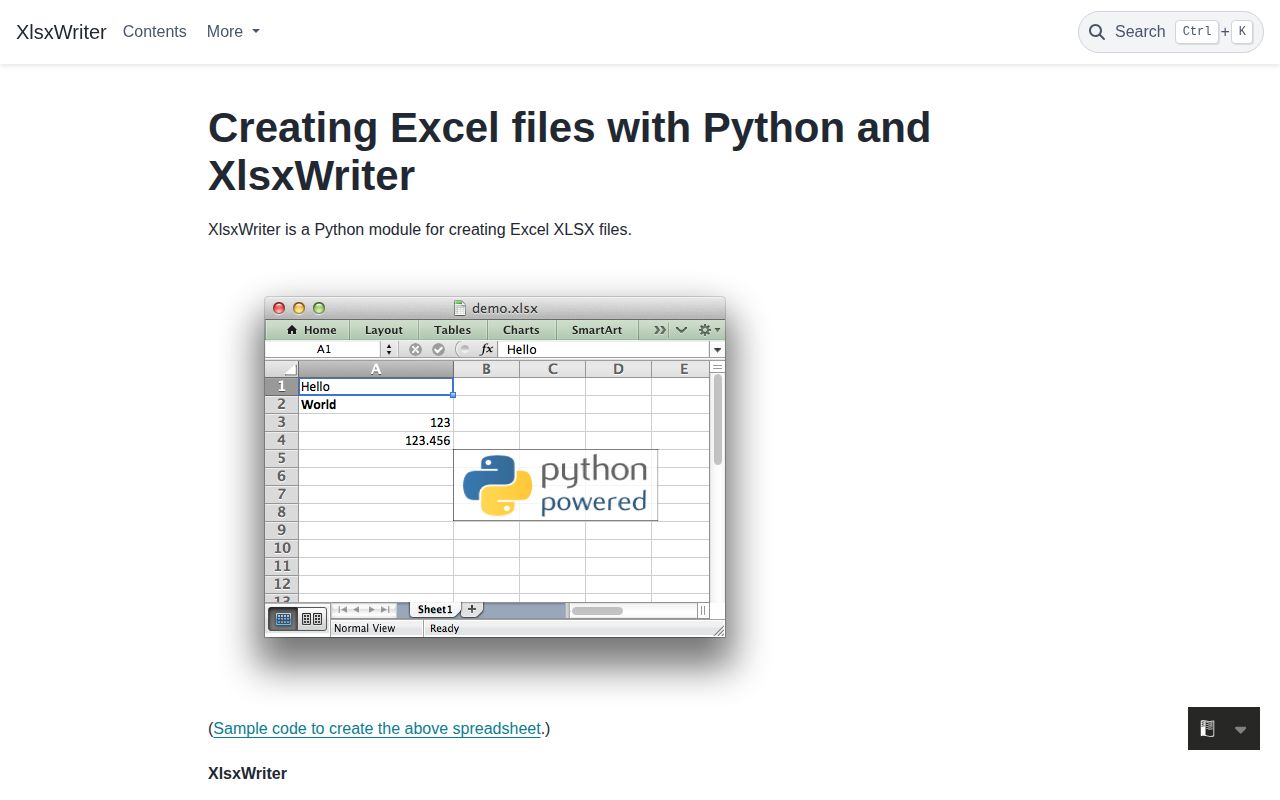
XlsxWriter 3.2.9 creates new Excel 2007+ .xlsx files from Python. It writes cells, formulas, formats, tables, charts, images, comments, validation rules, conditional formats, named ranges, macros, and print settings. pandas and Polars can select it as an output engine, then expose native workbook objects for final layout work. The defining limit is in the name: XlsxWriter cannot read or alter an existing workbook. Version 3.2.9 also removes py.typed because partial annotations were breaking downstream checks. Our install had no dependencies and imported in 0.27 seconds.
XlsxWriter 3.2.9 installed in 0.2 seconds as 1 MB with 0 dependencies in our sandbox, but it can only create new XLSX files and has no py.typed marker. Install it for formatted reports built from scratch; install openpyxl when the first requirement is to open or edit a workbook.
We installed it
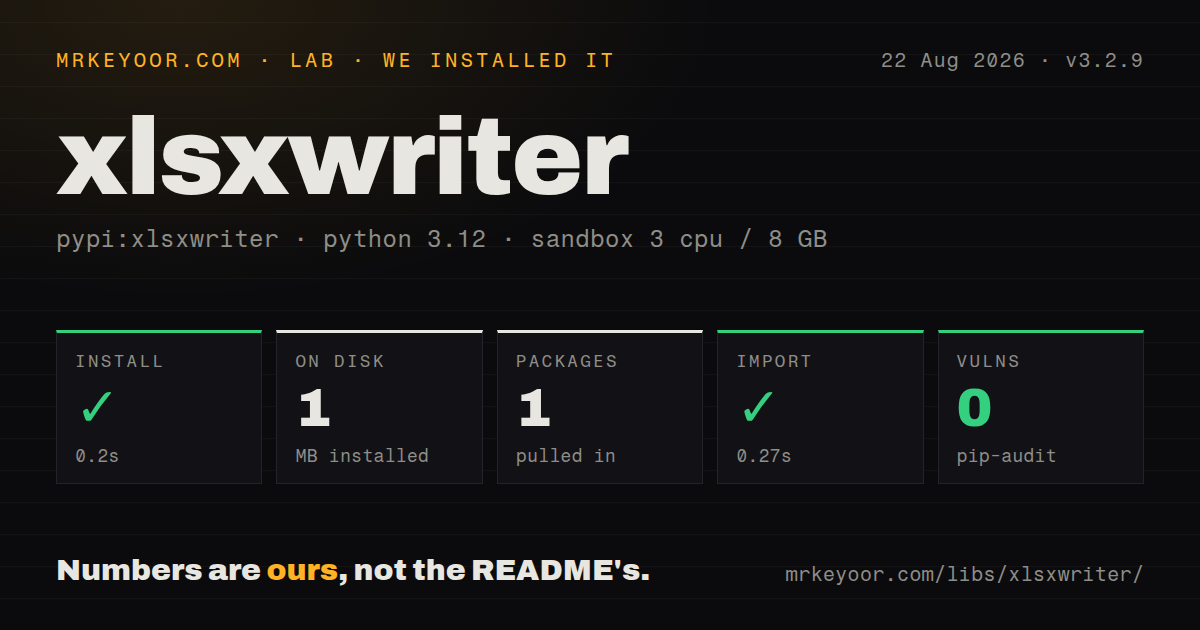
| Install | ✓ · 0.2s | 1 package on disk · 1 MB |
| Import | ✓ | import xlsxwriter in 0.27s · pure Python · requires Python >=3.8 |
| Known vulns | 0 | (pip-audit) |
Answers from our run
Does xlsxwriter install cleanly?
Yes. In a fresh container with an empty cache, pip install xlsxwriter finished in 0.2s, leaving 1 package and 1 MB on disk. pip-audit reported no known vulnerabilities.
What does xlsxwriter need to run?
Python >=3.8, and nothing compiled: it is pure Python. In our run import xlsxwriter succeeded in 0.27s.
xlsxwriter or openpyxl: which should you use?
openpyxl: Use it when Python 3 code must read, edit, or fill an existing XLSX workbook. XlsxWriter 3.2.9 installed in 0.2 seconds as 1 MB with 0 dependencies in our sandbox, but it can only create new XLSX files and has no py.typed marker.
When should you not use xlsxwriter?
An existing workbook or template must be opened and edited; XlsxWriter has no read API, so use openpyxl
Use it if
- A Python 3.8+ job must produce a new XLSX report with formulas, charts, formats, filters, or validation
- A pandas or Polars export needs workbook-level formatting after tabular values are written
- Deployment wants a pure-Python writer with 0 runtime dependencies and no compiler step
- A large row-ordered export can accept constant_memory restrictions to keep row storage bounded
- An existing workbook or template must be opened and edited; XlsxWriter has no read API, so use openpyxl
- The required file is .xls, .ods, or CSV; version 3.2.9 writes the XLSX format only
- A downstream reader needs calculated formula values; XlsxWriter stores formulas but does not run Excel's calculation engine
- CI requires py.typed on every dependency; version 3.2.9 intentionally removed that marker while annotations are incomplete
- Rows arrive out of order and memory must remain flat; constant_memory requires ascending writes and disables add_table() and autofit()
Setup reality
We installed XlsxWriter 3.2.9 in 0.2 seconds with Python 3.12. It left 1 package and 1 MB on disk, declared 0 direct dependencies, and pip-audit found 0 known vulnerabilities. import xlsxwriter finished in 0.27 seconds. The distribution is pure Python, requires Python 3.8+, uses BSD-2-Clause, and does not ship py.typed. The How we test run used a fresh unprivileged container with no package cache.
There are no credentials or global config files. Workbook() creates a new target, and close() assembles the final ZIP-based XLSX file. Use a with block where possible and still handle exceptions because invalid worksheet names, duplicate names, filesystem errors, and ZIP limits can appear during finalization. Since XlsxWriter cannot reopen its result, important exports need an acceptance check in Excel or a second library that can read the generated workbook.
Excel stores dates as serial numbers. write_datetime() needs an appropriate number format or users see that raw value. XLSX cells do not preserve Python time-zone objects, so normalize to an agreed zone before dropping tzinfo. Formats are shared workbook records: create a small palette once and do not mutate a Format after earlier cells reference it. Formulas are written without evaluation; pass a cached value for readers that never recalculate.
constant_memory flushes completed rows and therefore requires increasing row indexes. A later write to an earlier row cannot behave like normal mode, while add_table() and autofit() are unavailable. Images, charts, and formula strings can still make a 1 MB Python install generate a very large file. For DataFrames, enter through pandas.ExcelWriter or Polars, access writer.book and writer.sheets for formatting, then finish all workbook calls before the surrounding context closes.
Patterns
Write a new XLSX file create-workbook
import xlsxwriter

with xlsxwriter.Workbook('report.xlsx') as workbook:
    sheet = workbook.add_worksheet('Summary')
    sheet.write('A1', 'Region')
    sheet.write('B1', 'Revenue')
    sheet.write(1, 0, 'EMEA')
    sheet.write(1, 1, 120400)
The context finalizes the ZIP container on exit. Row and column numeric indexes start at 0.
Build a small workbook format palette reuse-cell-formats
formats = {
    'header': workbook.add_format({'bold': True, 'bg_color': '#DDEBF7', 'border': 1}),
    'money': workbook.add_format({'num_format': '#,##0.00'}),
    'date': workbook.add_format({'num_format': 'yyyy-mm-dd'}),
}
sheet.write('A1', 'Revenue', formats['header'])
sheet.write('A2', 1204.5, formats['money'])
Each Format belongs to 1 workbook. Reuse a limited palette instead of creating near-identical records inside a row loop.
Append rows in order write-record-rows
headers = ['Region', 'Revenue', 'Margin']
rows = [('EMEA', 120400, 0.184), ('APAC', 98100, 0.211)]
sheet.write_row(0, 0, headers, formats['header'])
for row_index, values in enumerate(rows, start=1):
    sheet.write_row(row_index, 0, values)
write_row applies 1 optional format to all values. Use cell writes when columns need different number formats.
Store a visible date value write-excel-date
from datetime import datetime

sheet.write_datetime('A2', datetime(2026, 8, 26, 14, 30), formats['date'])
Excel stores this as a number. Normalize time zones first because XLSX cells do not preserve Python tzinfo.
Supply a formula result for simple readers cache-formula-result
sheet.write_formula('D2', '=B2*C2', formats['money'], 22153.6)XlsxWriter does not calculate formulas. The fourth value is a cached result for software that does not recalculate the workbook.
Create a status dropdown add-validation-list
sheet.data_validation('E2:E500', {
    'validate': 'list',
    'source': ['Open', 'In progress', 'Closed'],
    'input_title': 'Status',
    'error_message': 'Choose a listed value.',
})
Excel limits inline validation sources to 255 characters. Put longer choices on a hidden sheet and reference that range.
Keep row memory bounded stream-large-sheet
workbook = xlsxwriter.Workbook('big.xlsx', {'constant_memory': True})
sheet = workbook.add_worksheet()
for row_index, values in enumerate(stream_records()):
    sheet.write_row(row_index, 0, values)
workbook.close()
Write rows in increasing order. In constant_memory mode, add_table() and autofit() warn and do nothing.
Adjust a DataFrame worksheet format-pandas-export
import pandas as pd

with pd.ExcelWriter('out.xlsx', engine='xlsxwriter', datetime_format='yyyy-mm-dd') as writer:
    df.to_excel(writer, sheet_name='Data', index=False)
    sheet = writer.sheets['Data']
    sheet.set_column('A:A', 24)
    sheet.freeze_panes(1, 0)
    sheet.autofilter(0, 0, len(df), len(df.columns) - 1)
writer.book and writer.sheets expose XlsxWriter objects only before the pandas context closes the file.
Chart worksheet data insert-column-chart
chart = workbook.add_chart({'type': 'column'})
chart.add_series({
    'name': 'Revenue',
    'categories': ['Summary', 1, 0, 12, 0],
    'values': ['Summary', 1, 1, 12, 1],
})
chart.set_title({'name': 'Revenue by region'})
sheet.insert_chart('E2', chart)
The chart references worksheet coordinates, so its 12 source rows must exist even if their sheet is later hidden.
Alternatives
| Package | Registry | Pick it when |
|---|---|---|
| openpyxl | PyPI | Use it when Python 3 code must read, edit, or fill an existing XLSX workbook |
| pandas | PyPI | Use DataFrame.to_excel when table export matters more than detailed workbook construction |
| pyexcelerate | PyPI | Use it for large rectangular writes where cell throughput matters more than workbook features |
More data guides
numpy · pandas · fsspec · pyarrow · lxml · sqlalchemy · the whole shelf →
How this guide is made: grounded in the library's documentation, release notes, changelog, and issue history, on a fixed rubric — not a hands-on install of every release. The 50 most-downloaded entries are additionally install-verified in clean containers. Corrections: contact the desk.