openpyxl review
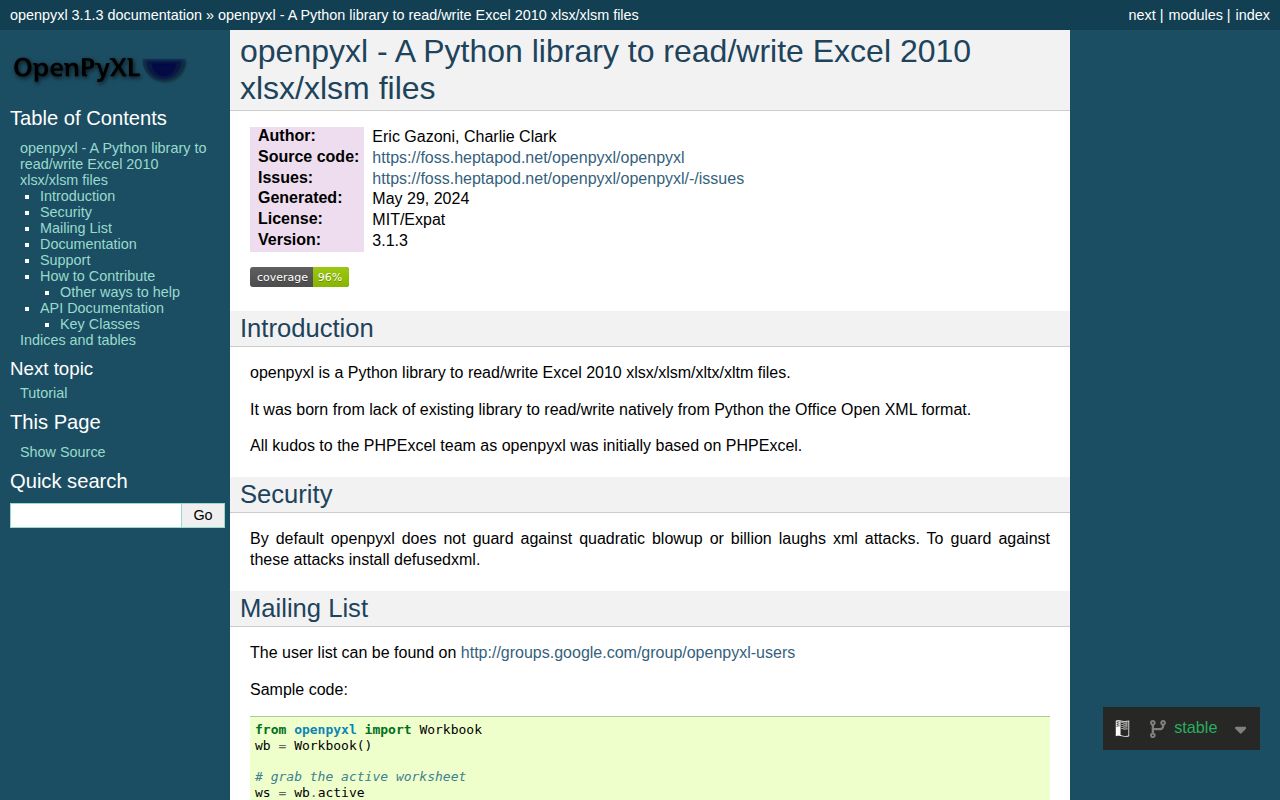
openpyxl 3.1.5 edits the Office Open XML workbook formats `.xlsx`, `.xlsm`, `.xltx`, and `.xltm` from Python. Its objects expose cells, worksheets, styles, formulas, charts, data validation, named ranges, and print settings without starting Excel. Normal mode materializes workbook structure in memory; `read_only` walks existing rows, while `write_only` appends a new workbook with lower memory use. The library stores formulas but has no calculation engine and cannot read legacy `.xls`. Version 3.1.5 fixes NumPy API test compatibility, Excel version metadata, and slow reads involving many named styles.
openpyxl 3.1.5 installed in 0.2 seconds as two packages using 2 MB in our sandbox, imported in 0.38 seconds, and had zero audit findings, but it shipped no `py.typed` marker. Use it for cell-level edits to modern Excel files; avoid it when formulas must be calculated, old `.xls` must be read, or every workbook extension must survive unchanged.
We installed it
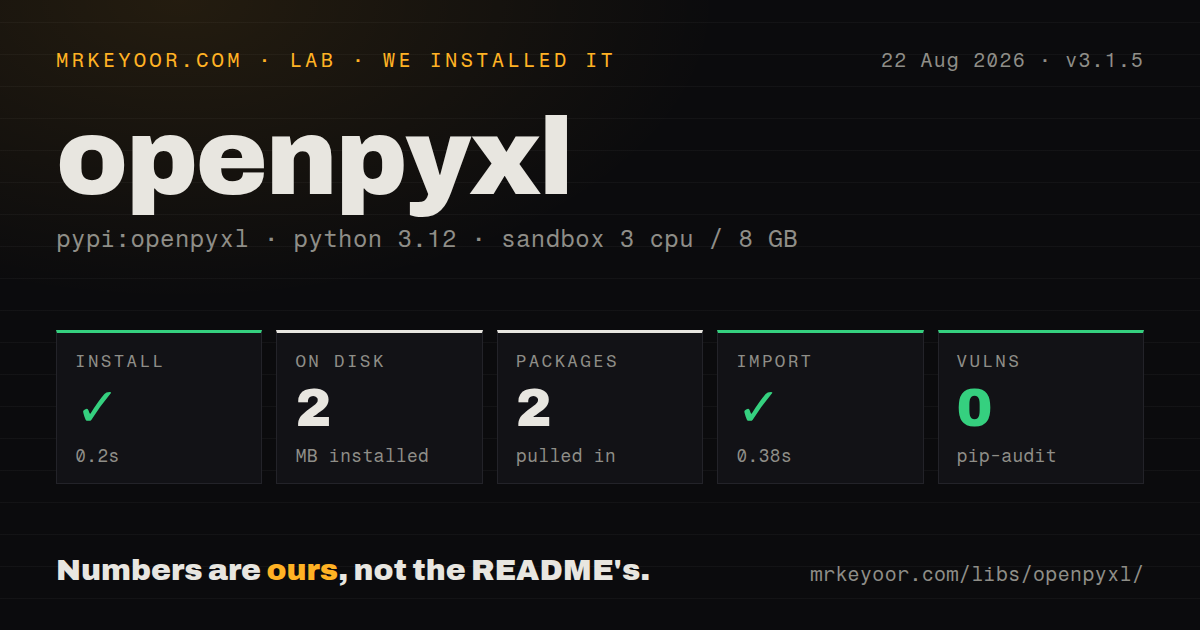
| Install | ✓ · 0.2s | 2 packages on disk · 2 MB |
| Import | ✓ | import openpyxl in 0.38s · pure Python · requires Python >=3.8 |
| Known vulns | 0 | (pip-audit) |
Answers from our run
Does openpyxl install cleanly?
Yes. In a fresh container with an empty cache, pip install openpyxl finished in 0.2s, leaving 2 packages and 2 MB on disk. pip-audit reported no known vulnerabilities.
What does openpyxl need to run?
Python >=3.8, and nothing compiled: it is pure Python. In our run import openpyxl succeeded in 0.38s.
openpyxl or xlsxwriter: which should you use?
xlsxwriter: Use it to create polished new .xlsx reports when existing workbooks never need to be read or edited. openpyxl 3.1.5 installed in 0.2 seconds as two packages using 2 MB in our sandbox, imported in 0.38 seconds, and had zero audit findings, but it shipped no py.typed marker.
When should you not use openpyxl?
The server must calculate formulas. openpyxl writes expressions and reads cached results, but it does not evaluate them.
Use it if
- Python must change values, formulas, styles, validation, or sheet properties in an existing modern Excel workbook.
- A generated report needs spreadsheet features beyond a plain table, such as merged cells, charts, or print configuration.
- Rows can be handled sequentially through `read_only` or `write_only` mode when a full in-memory model is too expensive.
- The job runs on a server where Microsoft Excel automation is unavailable or undesirable.
- The server must calculate formulas. openpyxl writes expressions and reads cached results, but it does not evaluate them.
- Inputs are `.xls` binary workbooks. The project supports Office Open XML formats and directs older files to another reader.
- The sheet is only a rectangular table already headed into pandas. A DataFrame reader or writer hides workbook details you do not need.
- Saving must preserve every drawing, extension, pivot feature, and vendor-specific object byte for byte. Unsupported parts can be lost during a load-save cycle.
- Untrusted workbooks must be parsed with XML entity defenses supplied by this package alone. The PyPI security note says to install `defusedxml` for quadratic blowup and billion-laughs protection.
Setup reality
We installed openpyxl 3.1.5 without a cache in a clean Python 3.12 Bookworm sandbox. The operation took 0.2 seconds and left two packages using 2 MB. openpyxl is pure Python, declares one direct dependency, requires Python 3.8 or later, and uses the MIT license. pip-audit found zero known vulnerabilities. Import succeeded in 0.38 seconds, but the package did not include py.typed.
Default load_workbook() creates cells and worksheet objects in memory, so RAM use does not track the compressed .xlsx file size. read_only=True favors ordered iteration and should be closed when finished. Workbook(write_only=True) lets a producer append rows with low memory use, but an appended row cannot be read or edited afterward. For hostile XML input, install defusedxml; the project's own PyPI page says the default parser does not guard against quadratic blowup or billion-laughs attacks.
Coordinates are one-based. Styles are immutable shared values, so assign a new Font, Fill, or copied style to each target cell instead of changing a component in place. save() overwrites the destination path without confirmation. Write a new file when the source must remain recoverable. Load macro workbooks with keep_vba=True to retain VBA parts; openpyxl does not inspect or modify the macro code. The missing py.typed marker also means strict typing often relies on the separate types-openpyxl stubs.
A formula cell stores an expression. With data_only=True, loading returns the last cached result written by Excel or another calculation engine, and a newly created formula can read back as None. Version 3.1.5 improves reads with many named styles and fixes workbook version metadata that Excel validates strictly. Those fixes do not promise full document fidelity: unsupported drawings or extensions may disappear after saving. Run a representative production workbook through load, save, reopen, and the target spreadsheet application before adopting the pipeline.
Patterns
Read cells by name or coordinates read-workbook
from openpyxl import load_workbook

wb = load_workbook("report.xlsx")
ws = wb["Sheet1"]  # or wb.active

print(ws["A1"].value)
print(ws.cell(row=2, column=3).value)
Rows and columns are numbered from 1, so `A1` and `cell(row=1, column=1)` select the same cell.
Save a new workbook write-workbook
from openpyxl import Workbook

wb = Workbook()
ws = wb.active
ws.title = "Data"
ws["A1"] = "name"
ws["B1"] = "qty"
wb.save("out.xlsx")
`save()` replaces an existing destination. Write to another path when the original workbook must remain recoverable.
Iterate row values without Cell objects iterate-rows
for row in ws.iter_rows(min_row=2, max_col=3, values_only=True):
    name, qty, price = row
    print(name, qty, price)
`values_only=True` is suited to scans that do not need formatting, comments, or cell coordinates.
Add records after existing content append-rows
rows = [
    ("widget", 3, 9.99),
    ("gadget", 7, 24.50),
]
for r in rows:
    ws.append(r)
A populated cell far below the visible table affects the used range and can move where `append()` writes the next row.
Apply formatting to a cell style-cells
from openpyxl.styles import Font, PatternFill, Alignment

cell = ws["A1"]
cell.font = Font(bold=True, color="FFFFFF")
cell.fill = PatternFill("solid", fgColor="4472C4")
cell.alignment = Alignment(horizontal="center")
Style objects are shared and immutable in practice. Assign styles cell by cell when formatting a complete header row.
Write a formula and read its cached value write-formula
ws["B10"] = "=SUM(B2:B9)"
wb.save("out.xlsx")

# later, to read cached results instead of formula strings:
from openpyxl import load_workbook
wb2 = load_workbook("out.xlsx", data_only=True)
print(wb2.active["B10"].value)
openpyxl never calculates the expression; `data_only=True` can return `None` until a spreadsheet engine saves a result.
Scan a large workbook in read-only mode read-large-file
from openpyxl import load_workbook

wb = load_workbook("big.xlsx", read_only=True)
ws = wb.active
for row in ws.iter_rows(values_only=True):
    process(row)
wb.close()
Process rows in order and close the workbook. Random coordinate access conflicts with the streaming design.
Produce a large workbook in write-only mode write-large-file
from openpyxl import Workbook

wb = Workbook(write_only=True)
ws = wb.create_sheet()
for row in generate_rows():
    ws.append(row)
wb.save("big.xlsx")
Once a row is appended, write-only mode cannot read it back or revise its cells, so finish the row first.
Alternatives
| Package | Registry | Pick it when |
|---|---|---|
| xlsxwriter | PyPI | Use it to create polished new `.xlsx` reports when existing workbooks never need to be read or edited. |
| python-calamine | PyPI | Use it for fast read-only access across `.xlsx`, `.xls`, `.xlsb`, and OpenDocument formats. |
| pandas | PyPI | Use it when each sheet is a table and DataFrame transformation matters more than workbook objects. |
More data guides
numpy · pandas · fsspec · pyarrow · lxml · sqlalchemy · the whole shelf →
How this guide is made: grounded in the library's documentation, release notes, changelog, and issue history, on a fixed rubric — not a hands-on install of every release. The 50 most-downloaded entries are additionally install-verified in clean containers. Corrections: contact the desk.