python-docx review
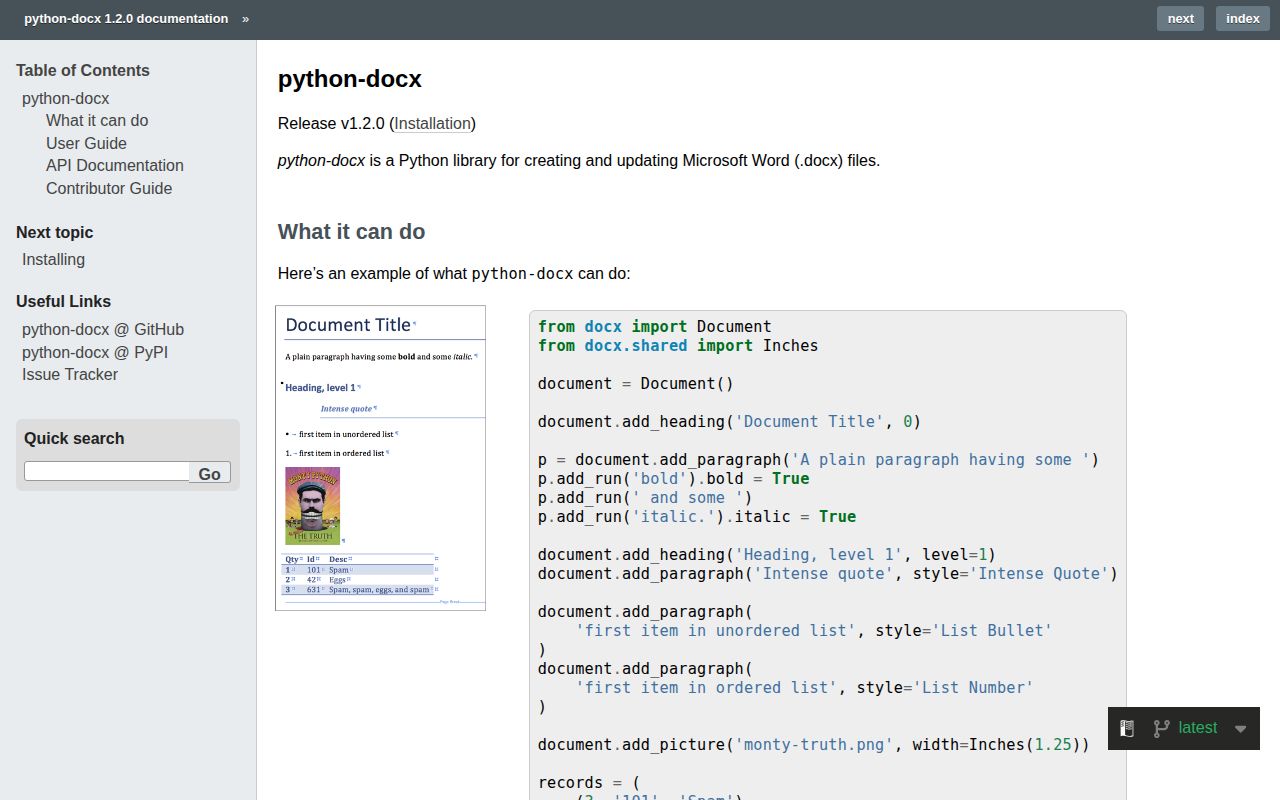
python-docx 1.2.0 reads, creates, changes, and saves the Office Open XML package used by Word 2007 and later .docx files. Its public objects follow document structure: sections contain headers, footers, and body content; paragraphs contain runs and hyperlinks; cells contain paragraphs and nested tables. It edits that structure but does not run Word's page-layout engine, so it cannot promise page numbers, final line breaks, or PDF rendering. Version 1.2 adds comments anchored to a run or consecutive runs, drops Python 3.8, and adds Python 3.13 testing.
python-docx 1.2.0 installed in 0.3 seconds and used 14 MB across 3 packages in our sandbox, then import docx worked in 0.27 seconds with 0 audit findings. Use it for editable Word structure; choose a renderer or converter when final pages and PDFs are the requirement.
We installed it
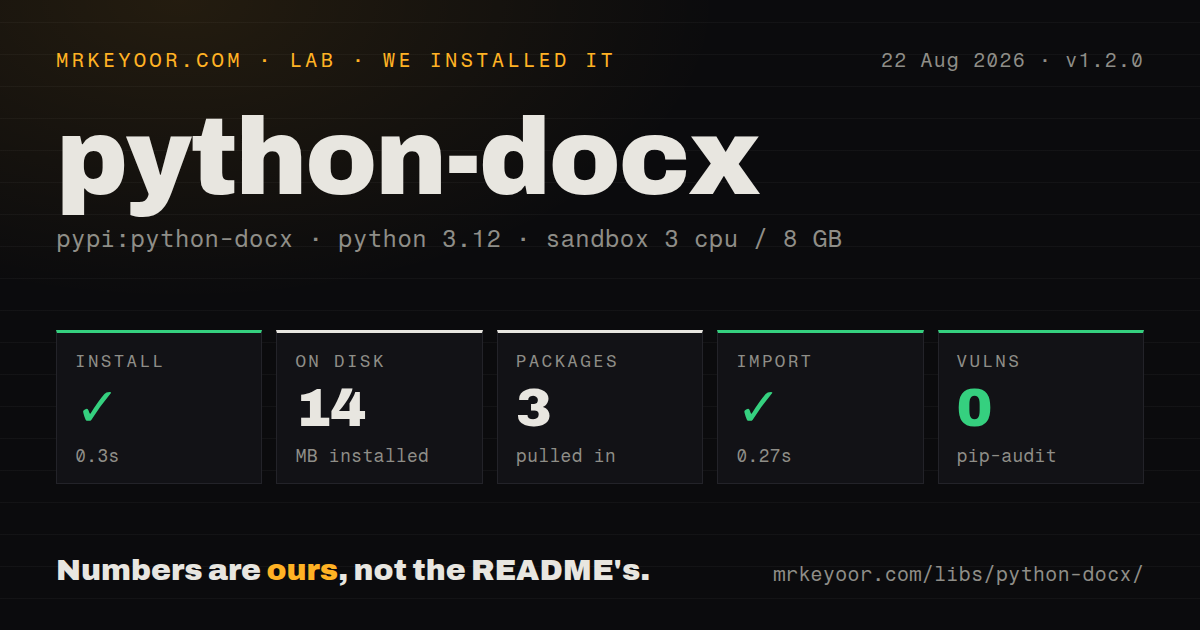
| Install | ✓ · 0.3s | 3 packages on disk · 14 MB |
| Import | ✓ | import docx in 0.27s · pure Python · py.typed · requires Python >=3.9 |
| Known vulns | 0 | (pip-audit) |
Answers from our run
Does python-docx install cleanly?
Yes. In a fresh container with an empty cache, pip install python-docx finished in 0.3s, leaving 3 packages and 14 MB on disk. pip-audit reported no known vulnerabilities.
What does python-docx need to run?
Python >=3.9, and nothing compiled: it is pure Python. In our run import docx succeeded in 0.27s, and the package ships py.typed for type checkers.
python-docx or docxtpl: which should you use?
docxtpl: Choose it when document owners edit a Word template and Jinja placeholders drive repeated report generation. python-docx 1.2.0 installed in 0.3 seconds and used 14 MB across 3 packages in our sandbox, then import docx worked in 0.27 seconds with 0 audit findings.
When should you not use python-docx?
The deliverable is a PDF or must break at exactly the same page and line on every machine; python-docx has no rendering engine
Use it if
- The output must remain an editable .docx that a reviewer can open and revise in Word or LibreOffice
- A company template already defines styles, margins, headers, footers, numbering, and theme choices for generated reports
- Code needs public access to paragraphs, runs, hyperlinks, tables, images, sections, comments, or core document properties
- Review automation must attach a version 1.2 comment to an exact run or contiguous group of runs
- The deliverable is a PDF or must break at exactly the same page and line on every machine; python-docx has no rendering engine
- Input includes legacy .doc, RTF, ODT, or arbitrary office formats; the documented reader handles Word 2007 and newer .docx files
- Footnotes, endnotes, tracked-change authoring, charts, fields, or text boxes are central and private XML maintenance is unacceptable
- A phrase replacement must preserve arbitrary mixed formatting automatically; visible text can be split across many runs, and assigning paragraph.text rebuilds plain content
- The application needs to know the final page containing a paragraph; pagination depends on fonts, printer metrics, and the office application that opens the file
Setup reality
We installed python-docx 1.2.0 without a cache in a fresh Python 3.12 Bookworm sandbox. Installation finished in 0.3 seconds and produced 3 packages occupying 14 MB. The distribution declares 2 direct dependencies, requires Python 3.9 or newer, is pure Python, ships py.typed, and uses the MIT license. pip-audit found 0 known vulnerabilities. The installed project name differs from its import: import docx succeeded in 0.27 seconds.
No service account or configuration file is involved. Start from a checked-in .docx template when layout and brand styles matter. Named styles must exist in that source document before code assigns them. Sections, headers, footers, page size, and theme defaults also come from the template. A blank Document uses python-docx's bundled default file rather than your organization's Word settings.
Text replacement is the common trap in version 1.2. Word may divide one visible sentence into runs because of bold text, hyperlinks, fields, or editing history. Setting paragraph.text discards that run structure and its inline formatting. Comments also anchor to run boundaries. Build important phrases as their own runs, or write a tested replacement routine that maps characters back to runs.
python-docx writes XML and embedded parts; it does not calculate pagination or convert to PDF. Features outside the public API often require _element edits against the OOXML tree. Isolate those helpers and test the saved file in Word and LibreOffice. Save can target BytesIO, but rewind the buffer before returning it over HTTP. Concurrent jobs should use separate Document and stream objects.
Patterns
Write a new editable report create-word-document
from docx import Document

doc = Document()
doc.add_heading('Incident report', level=1)
doc.add_paragraph('Service recovered at 14:32 UTC.')
doc.save('incident-report.docx')
Install python-docx, then import docx. The saved file contains editable Word structure and no fixed page rendering.
Inherit styles from a company file start-from-template
from docx import Document

doc = Document('templates/company-report.docx')
doc.add_paragraph('Executive summary', style='Heading 1')
doc.add_paragraph(summary, style='Body Text')
doc.save('report.docx')
Heading 1 and Body Text must exist in the template. Its sections, headers, footer links, and theme also carry into output.
Iterate paragraphs and tables in document order walk-body-order
from docx import Document
from docx.table import Table
from docx.text.paragraph import Paragraph

doc = Document('submission.docx')
for block in doc.iter_inner_content():
    if isinstance(block, Paragraph):
        print('paragraph', block.text)
    elif isinstance(block, Table):
        print('table rows', len(block.rows))
doc.paragraphs and doc.tables are separate lists. iter_inner_content preserves their order in the main body.
Format one phrase without flattening the paragraph format-selected-text
from docx.shared import Pt, RGBColor

paragraph = doc.add_paragraph('Status: ')
run = paragraph.add_run('OVERDUE')
run.bold = True
run.font.size = Pt(12)
run.font.color.rgb = RGBColor(0xB0, 0x00, 0x20)
Inline formatting belongs to runs. Reassigning paragraph.text would replace these runs with one plain-text run.
Append rows to a Word table build-table
table = doc.add_table(rows=1, cols=2)
table.style = 'Table Grid'
table.rows[0].cells[0].text = 'Region'
table.rows[0].cells[1].text = 'Orders'

for region, count in rows:
    cells = table.add_row().cells
    cells[0].text = region
    cells[1].text = str(count)
Setting cell.text replaces its contents with plain text. Add runs inside cell.paragraphs[0] when character styling matters.
Add a centered image with a fixed width insert-sized-image
from docx.enum.text import WD_ALIGN_PARAGRAPH
from docx.shared import Inches

doc.add_picture('chart.png', width=Inches(6))
doc.paragraphs[-1].alignment = WD_ALIGN_PARAGRAPH.CENTER
Supplying only width preserves the image's aspect ratio. With no size argument, embedded resolution metadata affects its dimensions.
Rotate one section to horizontal pages make-horizontal-section
from docx.enum.section import WD_ORIENT
from docx.shared import Inches

section = doc.sections[0]
section.orientation = WD_ORIENT.LANDSCAPE
section.page_width, section.page_height = section.page_height, section.page_width
section.left_margin = Inches(0.7)
section.right_margin = Inches(0.7)
Changing orientation alone is insufficient. Swap page width and height so the office application receives the horizontal dimensions.
Return a document as bytes save-to-memory
from io import BytesIO

buffer = BytesIO()
doc.save(buffer)
buffer.seek(0)
payload = buffer.read()
save accepts a binary file-like object. Seek back to position 0 before an HTTP response or another consumer reads it.
Anchor a review comment to a deadline comment-on-run
paragraph = doc.add_paragraph('Ship by ')
deadline = paragraph.add_run('31 August')
doc.add_comment(
    deadline,
    text='Confirm this date with operations.',
    author='Review bot',
    initials='RB',
)
Document comments were added in version 1.2. Isolate the target phrase in its own run for an exact anchor.
Read text from every body table extract-table-cells
from docx import Document

doc = Document('forms.docx')
for table in doc.tables:
    for row in table.rows:
        print([cell.text.strip() for cell in row.cells])
Nested tables live under cell.tables. Tables in headers and footers belong to those parts and do not appear in doc.tables.
Inspect section header and footer text read-headers-footers
for section in doc.sections:
    for paragraph in section.header.paragraphs:
        print(paragraph.text)
    for paragraph in section.footer.paragraphs:
        print(paragraph.text)
Several sections may link to the same header part. Track part identity when repeated output would be wrong.
Delete a paragraph through private OOXML remove-paragraph-xml
def remove_paragraph(paragraph):
    element = paragraph._element
    element.getparent().remove(element)
    paragraph._p = paragraph._element = None

for paragraph in list(doc.paragraphs):
    if paragraph.text.startswith('[REMOVE]'):
        remove_paragraph(paragraph)
Version 1.2 has no public paragraph deletion method. This private-element helper needs a saved-file regression test on upgrades.
Alternatives
| Package | Registry | Pick it when |
|---|---|---|
| docxtpl | PyPI | Choose it when document owners edit a Word template and Jinja placeholders drive repeated report generation. |
| mammoth | PyPI | Choose it to extract semantic HTML from .docx input rather than edit the Word package. |
| pypandoc | PyPI | Choose it when conversion among document formats matters more than direct paragraph, run, and table access. |
More data guides
numpy · pandas · fsspec · pyarrow · lxml · sqlalchemy · the whole shelf →
How this guide is made: grounded in the library's documentation, release notes, changelog, and issue history, on a fixed rubric — not a hands-on install of every release. The 50 most-downloaded entries are additionally install-verified in clean containers. Corrections: contact the desk.