notebook review
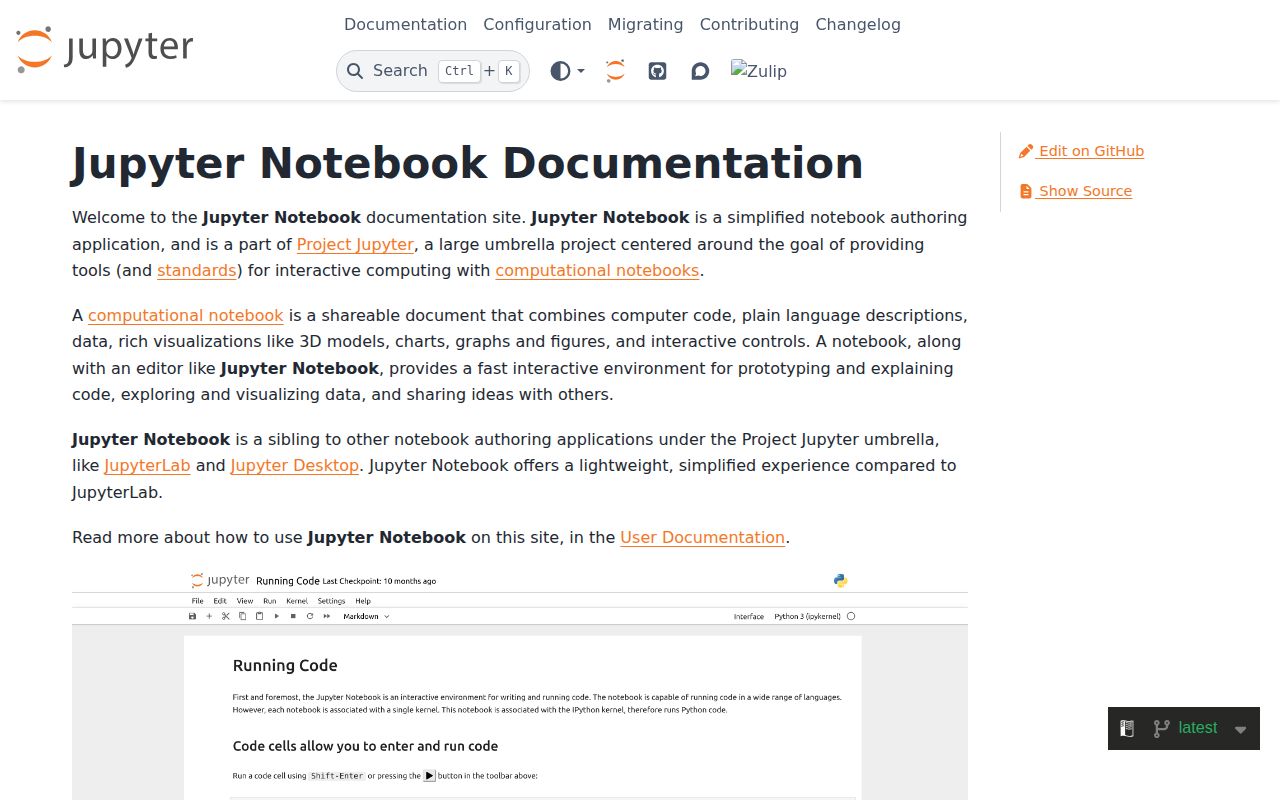
Jupyter Notebook 7.6.2 is the single-document browser interface for opening `.ipynb` files, running code through a separate kernel, editing Markdown, and keeping rich output beside each cell. Notebook 7 uses JupyterLab components in the frontend and Jupyter Server behind them, while preserving a simpler notebook-centered layout than the full Lab workspace. That architecture matters during upgrades because classic Notebook 6 frontend extensions do not load in Notebook 7. Release 7.6.2 is a maintenance update that moves its JupyterLab dependency to 4.6.3, improves the dependency updater, changes local pre-commit hook execution, and repairs one documentation link.
Notebook 7.6.2 is for people who want the classic document-focused workflow on maintained JupyterLab and Jupyter Server internals. Do not upgrade blindly if classic extensions are part of the job, and move lasting application logic into modules before hidden kernel state becomes part of deployment.
We installed it
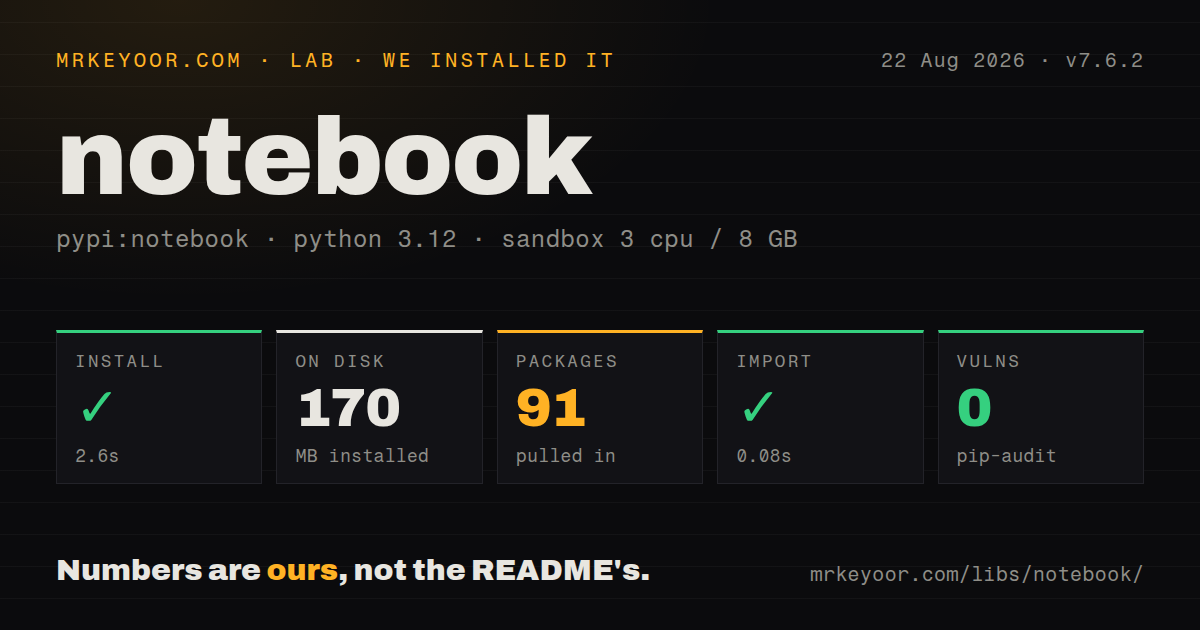
| Install | ✓ · 2.6s | 91 packages on disk · 170 MB |
| Import | ✓ | import notebook in 0.08s · pure Python · py.typed · requires Python >=3.10 |
| Known vulns | 0 | (pip-audit) |
Answers from our run
Does notebook install cleanly?
Yes. In a fresh container with an empty cache, pip install notebook finished in 3 seconds, leaving 91 packages and 170 MB on disk. pip-audit reported no known vulnerabilities.
What does notebook need to run?
Python >=3.10, and nothing compiled: it is pure Python. In our run import notebook succeeded in 0.08s, and the package ships py.typed for type checkers.
notebook or jupyterlab: which should you use?
jupyterlab: Use it for a multi-document workspace with file browsing, terminals, side panels, debugging, and notebooks in one interface. Notebook 7.6.2 is for people who want the classic document-focused workflow on maintained JupyterLab and Jupyter Server internals.
When should you not use notebook?
Your workflow depends on classic jupyter_contrib_nbextensions or another Notebook 6 frontend extension. Notebook 7's JupyterLab component model requires a replacement or a port.
Use it if
- Learners or analysts want one notebook document at a time and find JupyterLab's panels, terminals, and workspace controls distracting.
- Interactive work benefits from loading data once, keeping a live kernel, and iterating on tables or plots cell by cell.
- The project already uses Jupyter kernels for Python or another language and needs the familiar `.ipynb` exchange format.
- Notebook 7 compatible JupyterLab frontend extensions and Jupyter Server extensions cover the required customization.
- Your workflow depends on classic `jupyter_contrib_nbextensions` or another Notebook 6 frontend extension. Notebook 7's JupyterLab component model requires a replacement or a port.
- You want the full JupyterLab workspace anyway. The Notebook package installs the Lab stack beneath its interface, so installing JupyterLab directly avoids carrying a second presentation layer.
- Clean Git diffs and normal merge conflict handling are mandatory without extra tooling. `.ipynb` files store execution counters, metadata, and output, including images, inside JSON.
- A top-to-bottom execution order must be enforced by the editor. The kernel preserves variables between arbitrary cell runs, including values created by code that has since been deleted.
- This file is becoming production application code. Modules, tests, imports, reviewable text diffs, and a normal entry point are easier to maintain outside a stateful notebook document.
Setup reality
We installed notebook 7.6.2 in a fresh Python 3.12 Bookworm container. The install completed in 2.6 seconds, put 91 packages on disk, and used 170 MB. Notebook declares 23 direct dependencies and requires Python 3.10 or newer. It is pure Python, ships a py.typed marker, and uses the BSD 3-Clause License. import notebook worked in 0.08 seconds. pip-audit found no known vulnerabilities in the environment.
Launching jupyter notebook starts a local server and prints a token-bearing URL. If the terminal is gone, jupyter server list shows running servers; jupyter server stop PORT closes one. The environment running the server and the environment backing a selected kernel can differ. Register the intended virtual environment with python -m ipykernel install, then confirm the active kernel in the document before diagnosing a missing import.
Notebook 7 reads server settings through Jupyter Server. Generate jupyter_server_config.py and use ServerApp names rather than copying old NotebookApp configuration from a version 6 post. Remote access is an arbitrary-code execution service under the server account. Keep it on localhost behind SSH for personal use, or configure authentication, TLS, origin rules, websocket proxying, and a precise base URL for a managed deployment.
The document saves code, metadata, execution order, text output, and binary display data in one JSON file. Strip output or use notebook-aware diff tools before committing when reproducible output does not belong in history. Restart the kernel and run every cell before sharing. Headless execution and export come from nbconvert, which is separate from Notebook; PDF routes may also require LaTeX or a browser. Notebook extensions now follow JupyterLab and Jupyter Server extension mechanisms, not the classic nbextension commands.
Patterns
Open a local Notebook server install-and-launch
python -m pip install notebook
jupyter notebook

# Keep it in the terminal without opening a browser
jupyter notebook --no-browser --port 8888
The startup output contains the login token URL. By default the server is intended for local access, and the token grants code execution under your user account.
Recover a URL and stop an old server list-and-stop-servers
jupyter server list
# http://localhost:8888/?token=... :: /work/notebooks

jupyter server stop 8888
Use the server commands when a terminal was closed or a port is unexpectedly occupied. Stop the exact port rather than killing unrelated Python processes.
Create persistent local settings configure-server
jupyter server --generate-config

# ~/.jupyter/jupyter_server_config.py
c.ServerApp.ip = '127.0.0.1'
c.ServerApp.port = 8888
c.ServerApp.open_browser = False
c.ServerApp.root_dir = '/work/notebooks'
Notebook 7 is backed by Jupyter Server, so current configuration uses `ServerApp`. Many older `NotebookApp` examples target version 6.
Replace copied tokens with a password set-login-password
jupyter server password
jupyter notebook
A password changes the login flow but does not secure plain HTTP on an exposed network. Use an SSH tunnel or properly configured TLS and network controls for remote access.
Run behind a reverse-proxy prefix proxy-under-subpath
jupyter notebook \
  --no-browser \
  --ip 127.0.0.1 \
  --port 8888 \
  --ServerApp.base_url=/jupyter/ \
  --ServerApp.allow_remote_access=True
The proxy location and base URL must agree, including the slash. Forward websocket upgrades too, or the page may load while kernels never connect.
Make a virtual environment selectable register-python-kernel
python -m venv .venv
. .venv/bin/activate
python -m pip install ipykernel
python -m ipykernel install --user --name analytics --display-name 'Python (analytics)'

jupyter kernelspec list
The kernel runs the Python executable recorded in its kernelspec. Installing Notebook in one environment does not make packages from another environment visible inside a selected kernel.
Run every cell in CI execute-headlessly
python -m pip install nbconvert

jupyter nbconvert --to notebook --execute report.ipynb \
  --output report-executed.ipynb \
  --ExecutePreprocessor.timeout=600
This starts a clean kernel and follows document order. Increase the per-cell timeout only to match known work, since a hung cell should still fail the job.
Produce HTML or a Python script export-document
jupyter nbconvert --to html report.ipynb
jupyter nbconvert --to html --no-input report.ipynb
jupyter nbconvert --to script analysis.ipynb
`nbconvert` is installed separately. HTML is the least demanding export; PDF conversion may need LaTeX or the browser-based webpdf dependencies.
Remove generated output before Git clear-cell-output
jupyter nbconvert \
  --ClearOutputPreprocessor.enabled=True \
  --to notebook --inplace report.ipynb

# Repository filter option
python -m pip install nbstripout
nbstripout --install
Inline output can contain large images, environment paths, or printed secrets. Decide whether outputs are artifacts or source, then enforce that choice consistently.
Check Notebook 7 extension layers inspect-extensions
jupyter labextension list
jupyter server extension list

# Example prebuilt frontend extension
python -m pip install jupyterlab-git
Notebook 7 consumes JupyterLab prebuilt frontend extensions and Jupyter Server extensions. Instructions using `jupyter nbextension enable` are for the classic frontend.
Link directly to a document or interface open-known-routes
http://localhost:8888/tree
http://localhost:8888/notebooks/reports/sales.ipynb
http://localhost:8888/edit/config.yaml
http://localhost:8888/lab
All paths are relative to the server root and any configured base URL. Access still requires the active token, password, or upstream authentication.
Catch hidden state before sharing verify-clean-execution
# UI command: Kernel > Restart Kernel and Run All Cells

# Command-line check
jupyter nbconvert --to notebook --execute report.ipynb \
  --output /tmp/report-check.ipynb \
  --ExecutePreprocessor.timeout=600
A notebook can display correct output while relying on variables from an earlier out-of-order run. A fresh kernel executing in file order is the reproducibility check.
Alternatives
| Package | Registry | Pick it when |
|---|---|---|
| jupyterlab | PyPI | Use it for a multi-document workspace with file browsing, terminals, side panels, debugging, and notebooks in one interface. |
| voila | PyPI | Use it to present notebook code and widgets as an application while hiding code cells from viewers. |
| nbclassic | PyPI | Use it as a migration bridge when the literal classic interface is still required on a Jupyter Server stack. |
More data guides
numpy · pandas · fsspec · pyarrow · lxml · sqlalchemy · the whole shelf →
How this guide is made: grounded in the library's documentation, release notes, changelog, and issue history, on a fixed rubric — not a hands-on install of every release. The 50 most-downloaded entries are additionally install-verified in clean containers. Corrections: contact the desk.