jupyterlab review
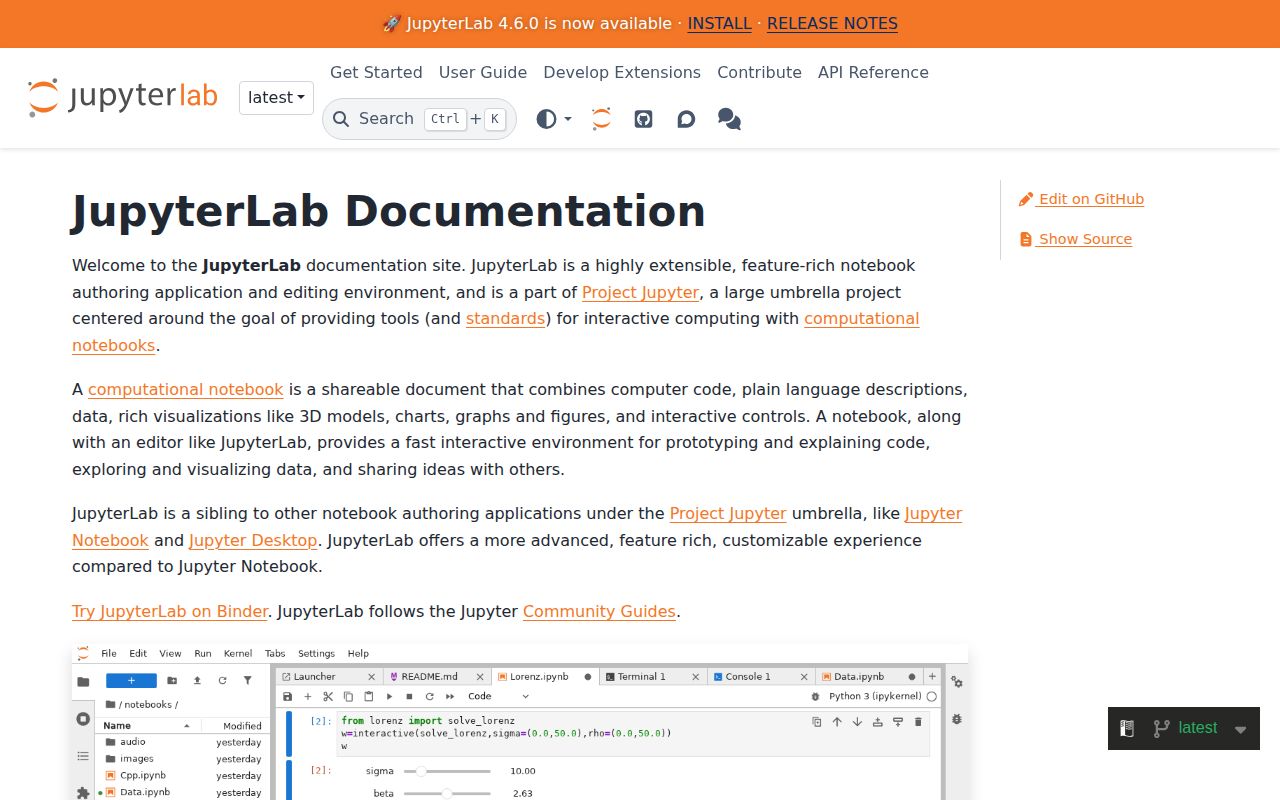
JupyterLab 4.6.3 is Project Jupyter's browser workbench for notebooks, terminals, text files, kernels, and rich output. The Python package starts Jupyter Server and serves the Lab frontend; code runs in separate kernel processes selected per notebook. Prebuilt extensions can add frontend and server plugins through Python or conda packages. Release 4.6.3 fixes Shift-click cell selection, a notebook-tools memory leak, reactive toolbar positions, variable inspection and document completion, plus the kernel status shown during a change. Our install worked on Python 3.12, but its 154 MB footprint and 90 installed packages confirm that this is an application stack, not a lightweight notebook execution dependency.
JupyterLab is the right install for an interactive workspace with kernels, files, terminals, and extensions. Do not carry its 154 MB stack into a batch runner, and do not expose one process as a casual multi-user service.
We installed it
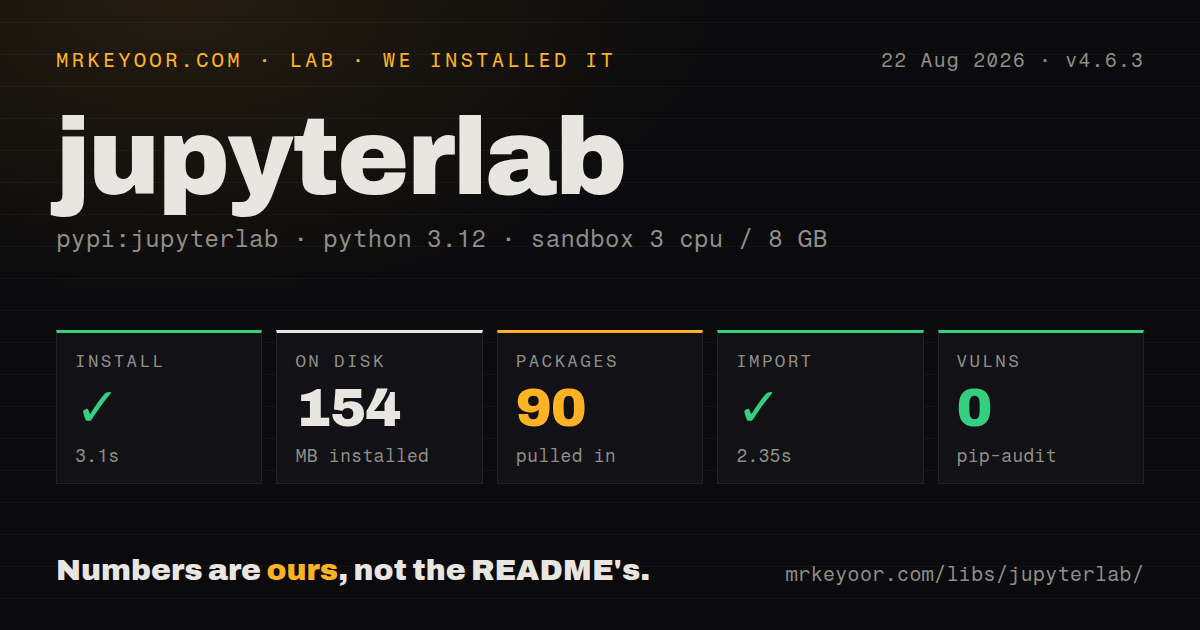
| Install | ✓ · 3.1s | 90 packages on disk · 154 MB |
| Import | ✓ | import jupyterlab in 2.35s · pure Python · requires Python >=3.10 |
| Known vulns | 0 | (pip-audit) |
Answers from our run
Does jupyterlab install cleanly?
Yes. In a fresh container with an empty cache, pip install jupyterlab finished in 3 seconds, leaving 90 packages and 154 MB on disk. pip-audit reported no known vulnerabilities.
What does jupyterlab need to run?
Python >=3.10, and nothing compiled: it is pure Python. In our run import jupyterlab succeeded in 2.35s.
jupyterlab or notebook: which should you use?
notebook: Use Notebook 7 for a simpler document-focused Jupyter interface. JupyterLab is the right install for an interactive workspace with kernels, files, terminals, and extensions.
When should you not use jupyterlab?
You only need to run notebooks in CI; nbconvert or papermill does that without installing the full Lab interface
Use it if
- You need notebooks, terminals, editors, file navigation, and rich outputs in one remote or local browser workspace
- A long-lived kernel lets you inspect expensive data or models repeatedly without reloading them for every command
- Your workflow depends on Jupyter widgets, language kernels, or prebuilt Lab extensions
- You want to work on files and compute located on a remote GPU or data server through an SSH tunnel
- You only need to run notebooks in CI; nbconvert or papermill does that without installing the full Lab interface
- Several untrusted users need isolated accounts; a single JupyterLab server runs code and terminals as one OS user, so deploy JupyterHub instead
- A 154 MB environment and 90 installed packages are excessive for the job; that was our clean Python 3.12 result
- The notebook is the production source of truth; hidden execution order, retained kernel state, output JSON, and poor diffs make review harder than plain modules
- You cannot maintain authentication and WebSocket proxying for a remote endpoint; access to Lab is effectively access to code execution and a terminal
Setup reality
Our fresh Python 3.12 install of JupyterLab 4.6.3 succeeded in 3.1 seconds. It produced 90 installed packages using 154 MB, and pip-audit found zero known vulnerabilities. The package metadata declares 50 direct dependencies and Python 3.10 or newer. It is pure Python, import jupyterlab completed in 2.35 seconds, and no py.typed marker is shipped. The browser assets arrive with the distribution, so ordinary use does not require a local Node build.
Running jupyter lab starts a web server and usually opens a tokenized local URL. With a user-level pip install, the jupyter executable may land outside PATH. Kernels are separate environments: install ipykernel inside the environment that should execute cells, register its kernelspec, and confirm sys.executable in the notebook when imports come from an unexpected place.
Remote access needs more care than changing the bind address. Keep the server on localhost and use an SSH tunnel when possible. A reverse proxy must pass WebSocket upgrade headers and use the same base_url as Jupyter Server. If the page loads while every kernel remains at Connecting, check the WebSocket path first. Never remove token or password checks unless another authenticated layer controls the endpoint.
Extensions can have a Python server half and a frontend half; inspect both extension lists when a plugin appears installed but inactive. User settings, system overrides, ServerApp configuration, LabApp configuration, and extension JSON live in different locations. Version 4 extensions are the safe target because JupyterLab 3 reached end of maintenance in 2024.
Patterns
Install Lab inside the project environment install-launch
python -m venv .venv
source .venv/bin/activate
python -m pip install jupyterlab
jupyter lab

jupyter --paths
jupyter lab --version
Keeping Lab with the project reduces confusion about which packages and kernels are available. A user-level install may require adding its scripts directory to PATH.
Reach a remote Lab through SSH tunnel-remote-server
# remote host
jupyter lab --no-browser --ip=127.0.0.1 --port=8888

# local machine
ssh -N -L 8888:127.0.0.1:8888 analyst@gpu-host
# Open the token URL printed by the remote process.
The localhost bind keeps the service off the public network. Run jupyter server list on the remote host if the token URL is lost.
Register a virtual environment as a kernel register-kernel
source ~/envs/forecast/bin/activate
python -m pip install ipykernel
python -m ipykernel install --user \
  --name forecast --display-name 'Python (forecast)'

jupyter kernelspec list
Run the registration command from the environment that should execute cells. In a notebook, print sys.executable to verify the selected interpreter.
Generate and edit server settings configure-server
jupyter lab --generate-config

# ~/.jupyter/jupyter_lab_config.py
c.ServerApp.ip = '127.0.0.1'
c.ServerApp.port = 8888
c.ServerApp.open_browser = False
c.ServerApp.root_dir = '/srv/notebooks'
c.ServerApp.terminals_enabled = False
Modern server settings use ServerApp. Copying older NotebookApp keys can leave the intended setting unused.
Install and inspect a prebuilt extension install-extension
python -m pip install jupyterlab-git
jupyter labextension list
jupyter server extension list
Some extensions need both frontend assets and a Python server extension. Check both lists before assuming a page reload is enough.
Serve Lab below a reverse-proxy path proxy-subpath
jupyter lab --ServerApp.base_url=/lab/ --ServerApp.allow_remote_access=True

# Nginx location /lab/
proxy_pass http://127.0.0.1:8888;
proxy_http_version 1.1;
proxy_set_header Upgrade $http_upgrade;
proxy_set_header Connection "upgrade";
proxy_set_header Host $host;
The proxy path and base_url must agree. Missing WebSocket upgrade headers often leaves the interface visible but kernels unable to connect.
Execute a notebook without starting Lab execute-headless
python -m pip install nbconvert
jupyter nbconvert \
  --to notebook \
  --execute analysis.ipynb \
  --output executed.ipynb
This workflow does not need the jupyterlab package. Configure an execution timeout explicitly when cells can run longer than the tool default.
Run Lab as a non-root container user containerize-lab
FROM python:3.12-slim
RUN pip install --no-cache-dir jupyterlab pandas
RUN useradd --create-home analyst
USER analyst
WORKDIR /home/analyst/work
EXPOSE 8888
CMD ["jupyter", "lab", "--ip=0.0.0.0", "--no-browser"]
Persist the work directory with a volume. The terminal and kernels can modify anything the container user can reach, including writable bind mounts.
Alternatives
| Package | Registry | Pick it when |
|---|---|---|
| notebook | PyPI | Use Notebook 7 for a simpler document-focused Jupyter interface |
| marimo | PyPI | Use it for reactive notebooks stored as ordinary Python files |
| jupyterhub | PyPI | Use it when multiple people need authenticated, separately managed notebook servers |
| papermill | PyPI | Use it to parameterize and execute notebooks as batch jobs |
More data guides
numpy · pandas · fsspec · pyarrow · lxml · sqlalchemy · the whole shelf →
How this guide is made: grounded in the library's documentation, release notes, changelog, and issue history, on a fixed rubric — not a hands-on install of every release. The 50 most-downloaded entries are additionally install-verified in clean containers. Corrections: contact the desk.