nbconvert review
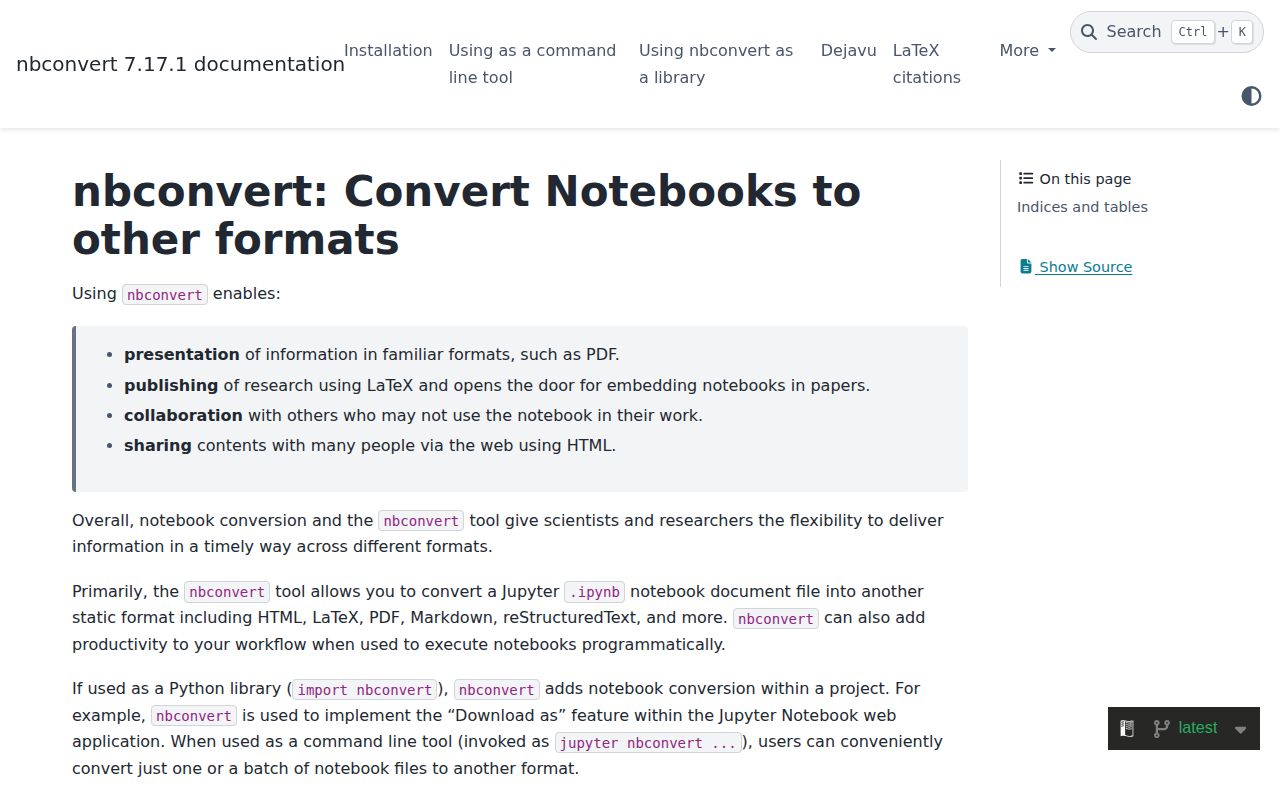
nbconvert 7.17.1 turns Jupyter notebooks into HTML, Markdown, scripts, LaTeX, PDF, Reveal.js slides, reStructuredText, or AsciiDoc. Its pipeline runs preprocessors, renders a Jinja template through an exporter, and passes the document plus extracted resources to a writer. Preprocessors can execute cells, strip outputs, remove tagged material, or sanitize HTML. The same pieces are exposed through `jupyter nbconvert` and Python classes. The current release fixes 2 CVEs, a shared-filesystem template error, duplicate WebPDF extensions, and WebPDF JavaScript timeout configuration.
nbconvert 7.17.1 installed in 0.6 seconds, used 20 MB across 31 packages, imported in 1.41 seconds, and returned 0 pip-audit findings in our sandbox. Use it for an actual conversion pipeline; choose nbclient or Papermill for narrower execution work, and provision system renderers before committing to PDF output.
We installed it
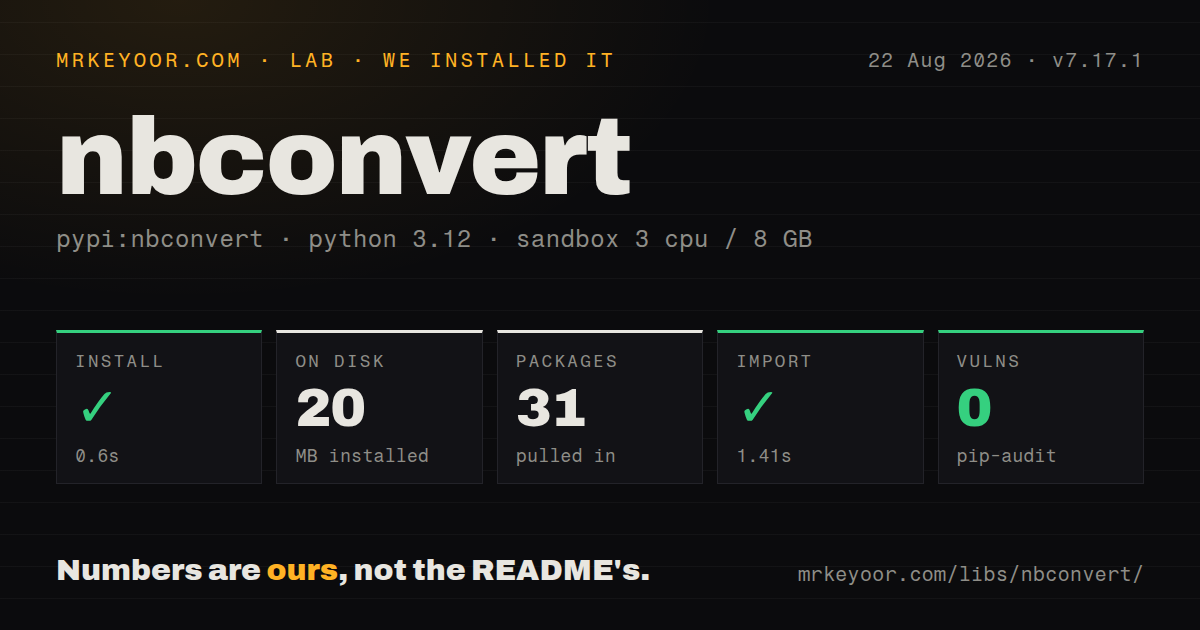
| Install | ✓ · 0.6s | 31 packages on disk · 20 MB |
| Import | ✓ | import nbconvert in 1.41s · pure Python · py.typed · requires Python >=3.9 |
| Known vulns | 0 | (pip-audit) |
Answers from our run
Does nbconvert install cleanly?
Yes. In a fresh container with an empty cache, pip install nbconvert finished in 0.6s, leaving 31 packages and 20 MB on disk. pip-audit reported no known vulnerabilities.
What does nbconvert need to run?
Python >=3.9, and nothing compiled: it is pure Python. In our run import nbconvert succeeded in 1.41s, and the package ships py.typed for type checkers.
nbconvert or nbclient: which should you use?
nbclient: Use it when the job ends after executing cells and no format exporter or template is needed. nbconvert 7.17.1 installed in 0.6 seconds, used 20 MB across 31 packages, imported in 1.41 seconds, and returned 0 pip-audit findings in our sandbox.
When should you not use nbconvert?
Execution is the only requirement. nbclient runs notebook cells without pulling in nbconvert's exporter, template, and writer layers.
Use it if
- CI should execute a notebook, fail on a cell error, and preserve an executed notebook for diagnosis.
- A report notebook needs repeatable HTML, Markdown, script, PDF, or slide output from one command.
- Publication requires code hiding, output removal, tag-based filtering, or sanitization before template rendering.
- Python code needs direct control over exporters, preprocessors, resource files, and writers.
- Execution is the only requirement. `nbclient` runs notebook cells without pulling in nbconvert's exporter, template, and writer layers.
- Runs need parameters and a separate executed notebook for each job. Papermill is designed around that workflow.
- You need a multi-page documentation site with navigation, cross-references, and cached builds. nbconvert handles each notebook as a separate conversion.
- A minimal container cannot accept pandoc, XeLaTeX, fonts, or Chromium. Those system tools are required by the relevant PDF routes even though pip installation succeeds.
- Untrusted notebooks will be published with default HTML settings. Sanitization is opt-in, and version 7.17.1 exists partly to fix 2 security advisories.
Setup reality
We installed nbconvert 7.17.1 in 0.6 seconds in a fresh Python 3.12 container. It left 31 packages occupying 20 MB. The package declares 45 direct dependencies, requires Python 3.9 or newer, is pure Python, includes py.typed, and carries the BSD 3-Clause license. pip-audit reported 0 known vulnerabilities. import nbconvert succeeded in 1.41 seconds.
Basic HTML, Markdown, and script exports stay within the Python environment. PDF promises do not. The LaTeX path needs pandoc, XeLaTeX, and suitable fonts. WebPDF needs the webpdf extra plus Playwright and a Chromium binary. Qt PDF and PNG use a Qt web engine. A container can therefore pass pip install and still fail on its first PDF conversion because the external renderer is absent.
Execution has another external dependency: a registered Jupyter kernel. Set ExecutePreprocessor.kernel_name and the notebook working directory when cells rely on relative files. The documented per-cell timeout can stop legitimate long jobs, while --allow-errors changes failure semantics by recording tracebacks and continuing. CI should choose that policy deliberately and save the executed notebook when debugging evidence matters.
The CLI requires --to. Python exporters return both a body and a resources mapping; extracted images disappear if a caller writes only the body. HTML sanitization remains disabled unless requested. Version 7.17.1 fixes 2 CVEs, so older 7.x installations should move forward before converting material from outside the trust boundary. Custom templates also deserve code review because they participate in rendering and rely on nbconvert's current template directories and traitlets configuration.
Patterns
Render a notebook as HTML export-html
jupyter nbconvert --to html report.ipynb

jupyter nbconvert --to html --template classic report.ipynb
jupyter nbconvert --to html --embed-images report.ipynb
Without `--embed-images`, extracted plots are written beside the HTML and must be deployed with it.
Run a notebook in CI execute-notebook
jupyter nbconvert --to notebook --execute --inplace \
  --ExecutePreprocessor.timeout=600 \
  --ExecutePreprocessor.kernel_name=python3 \
  notebooks/check.ipynb
The named kernel must be installed and registered; `--inplace` overwrites the input notebook with executed output.
Record cell failures without stopping continue-after-cell-error
jupyter nbconvert --to notebook --execute --allow-errors \
  --output failed-run.ipynb \
  pipeline.ipynb
`--allow-errors` stores tracebacks and continues, so the command is unsuitable as a strict CI pass/fail gate.
Extract notebook cells as source export-script
jupyter nbconvert --to script analysis.ipynb

jupyter nbconvert --to script --stdout analysis.ipynb
The kernelspec determines the extension, and IPython magics may become `get_ipython()` calls rather than plain Python.
Remove outputs in place clear-output
jupyter nbconvert --clear-output --inplace notebooks/*.ipynbThis clears results and execution counts but retains metadata such as tags and slideshow settings.
Publish a report without code cells hide-input
jupyter nbconvert --to html --no-input report.ipynb

# retain code but remove input and output prompts
jupyter nbconvert --to html --no-prompt report.ipynb
Hiding cells changes presentation only; credentials remain in the `.ipynb` source and may survive another export path.
Drop cells and outputs by tag remove-tagged-content
jupyter nbconvert --to html report.ipynb \
  --TagRemovePreprocessor.enabled=True \
  --TagRemovePreprocessor.remove_cell_tags remove_cell \
  --TagRemovePreprocessor.remove_input_tags hide_code \
  --TagRemovePreprocessor.remove_all_outputs_tags hide_output
The preprocessor must be enabled, and the tags must already exist in each cell's metadata.
Choose a PDF renderer export-pdf
# pandoc plus XeLaTeX and fonts
jupyter nbconvert --to pdf thesis.ipynb

# Playwright plus Chromium
jupyter nbconvert --to webpdf --allow-chromium-download report.ipynb
Both routes need software outside the base wheel; WebPDF and LaTeX can render the same notebook differently.
Write HTML and extracted resources use-python-exporter
from nbconvert import HTMLExporter
from nbconvert.writers import FilesWriter

exporter = HTMLExporter(template_name='classic')
body, resources = exporter.from_filename('report.ipynb')
FilesWriter(build_directory='out').write(
    body, resources, notebook_name='report'
)
The resources mapping carries images and metadata; writing only `body` can leave the document incomplete.
Run cells in a chosen directory execute-from-python
import nbformat
from nbconvert.preprocessors import ExecutePreprocessor

with open('pipeline.ipynb', encoding='utf-8') as handle:
    notebook = nbformat.read(handle, as_version=4)

runner = ExecutePreprocessor(timeout=600, kernel_name='python3')
runner.preprocess(notebook, {'metadata': {'path': 'notebooks/'}})

with open('executed.ipynb', 'w', encoding='utf-8') as handle:
    nbformat.write(notebook, handle)
The resource path becomes the kernel's working directory, and preprocessing mutates the notebook object.
Sanitize notebook HTML sanitize-html
jupyter nbconvert --to html --sanitize-html untrusted.ipynbSanitization is opt-in; run 7.17.1 or later because this release fixes 2 security advisories.
Export Reveal.js slides build-slides
jupyter nbconvert --to slides talk.ipynb

jupyter nbconvert --to slides talk.ipynb \
  --reveal-prefix reveal.js \
  --post serve
Slide, sub-slide, fragment, skip, and notes behavior comes from cell metadata; offline decks need local Reveal.js assets.
Alternatives
| Package | Registry | Pick it when |
|---|---|---|
| nbclient | PyPI | Use it when the job ends after executing cells and no format exporter or template is needed. |
| papermill | PyPI | Use it for parameterized notebook runs that preserve one output notebook per invocation. |
| jupytext | PyPI | Use it to pair notebooks with reviewable Markdown or source files and synchronize changes between them. |
More data guides
numpy · pandas · fsspec · pyarrow · lxml · sqlalchemy · the whole shelf →
How this guide is made: grounded in the library's documentation, release notes, changelog, and issue history, on a fixed rubric — not a hands-on install of every release. The 50 most-downloaded entries are additionally install-verified in clean containers. Corrections: contact the desk.