av review
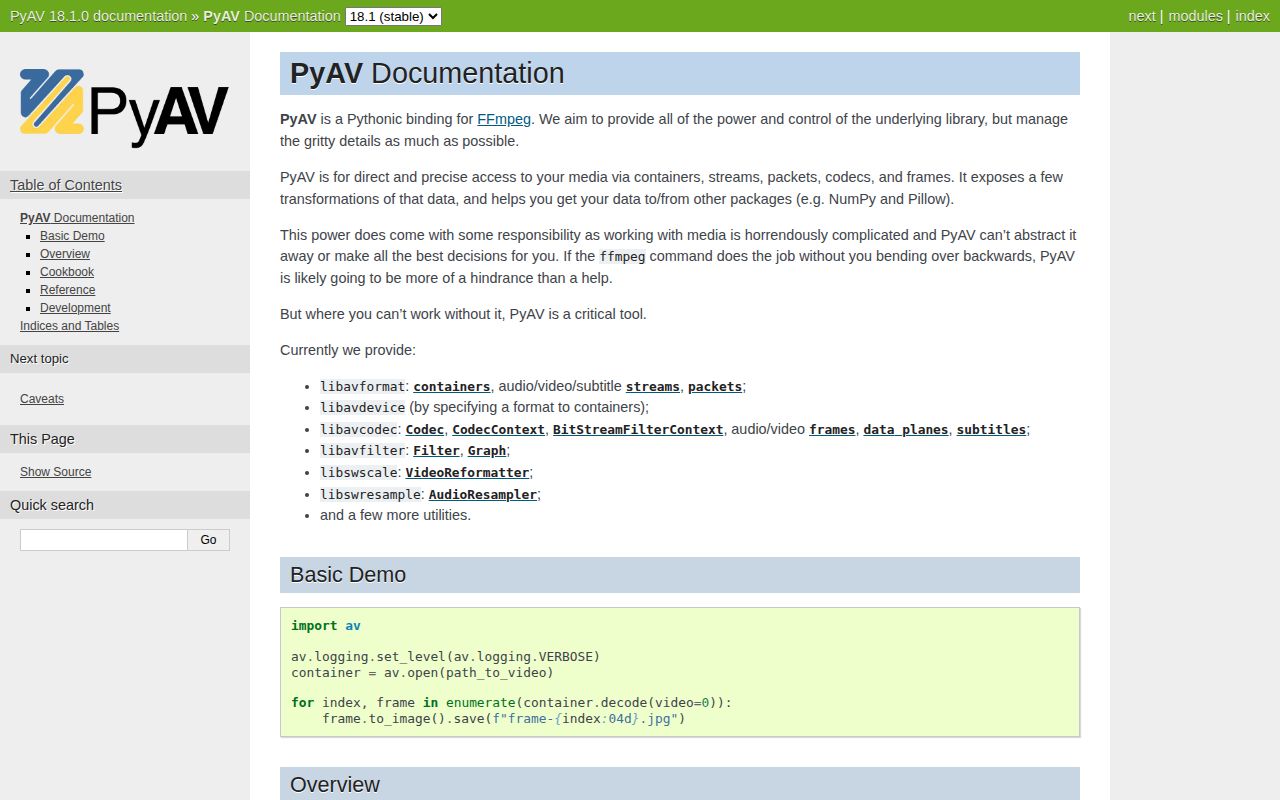
PyAV puts FFmpeg containers, streams, packets, codecs, and audio or video frames inside Python. It is useful when code must inspect timestamps, decode selected frames, remux packets, or exchange pixel data with NumPy and Pillow. Version 18.1.0 adds packet timestamp rescaling, frame metadata, codec-option discovery, exact AVRational values, and more CUDA context and stream control. Our install found compiled extensions and no Python dependencies, so the 102 MB footprint is the bundled media stack rather than a large Python dependency graph.
Install PyAV when media packets, frames, and timestamps must be first-class Python objects. Use ffmpeg directly or a higher-level editor when you do not need that control, because PyAV leaves many FFmpeg decisions in application code.
We installed it
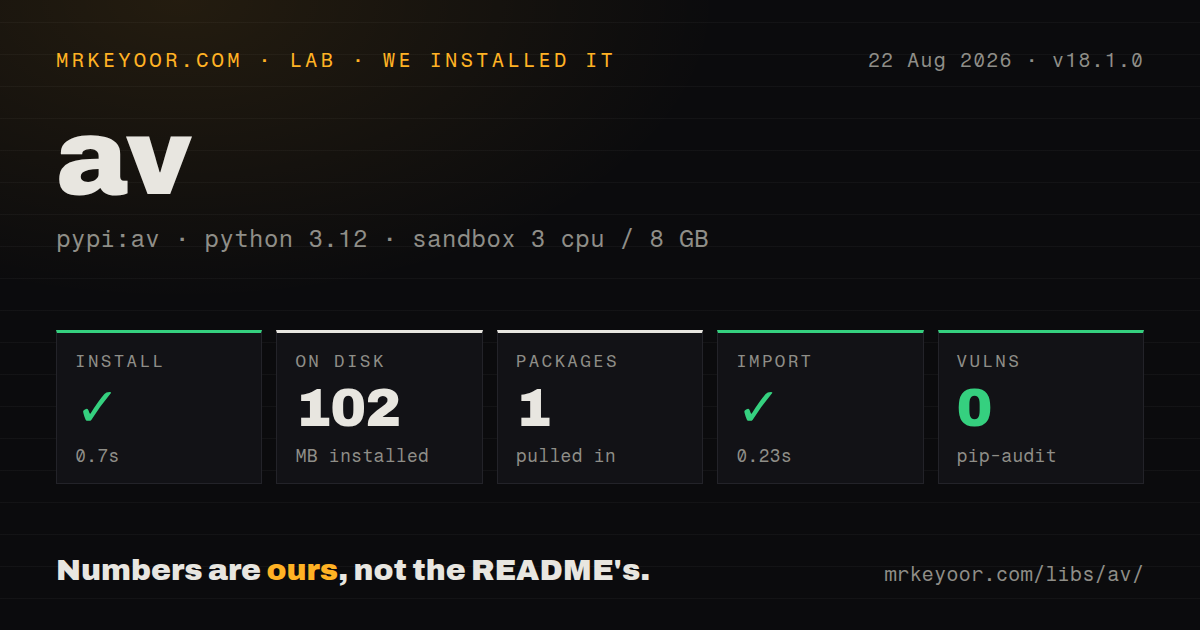
| Install | ✓ · 0.7s | 1 package on disk · 102 MB |
| Import | ✓ | import av in 0.23s · compiled extensions · py.typed · requires Python >=3.11 |
| Known vulns | 0 | (pip-audit) |
Answers from our run
Does av install cleanly?
Yes. In a fresh container with an empty cache, pip install av finished in 0.7s, leaving 1 package and 102 MB on disk. pip-audit reported no known vulnerabilities.
What does av need to run?
Python >=3.11, and a platform wheel with compiled extensions. In our run import av succeeded in 0.23s, and the package ships py.typed for type checkers.
av or moviepy: which should you use?
moviepy: Pick it for clip composition, cuts, text, and effects at a higher level. Install PyAV when media packets, frames, and timestamps must be first-class Python objects.
When should you not use av?
A tested ffmpeg command already performs the conversion. The project README says PyAV can get in the way when the command-line tool is sufficient.
Use it if
- You need frame-level or packet-level media access inside a Python process instead of parsing ffmpeg subprocess output.
- A vision or audio pipeline needs decoded data as NumPy arrays while retaining timestamps and stream metadata.
- You need to remux compatible streams without decoding and re-encoding their payloads.
- CUDA-aware code needs to exchange frames through DLPack or pass an explicit CUDA stream to FFmpeg operations.
- A tested ffmpeg command already performs the conversion. The project README says PyAV can get in the way when the command-line tool is sufficient.
- You want an editing timeline with titles, transitions, clip composition, and preview controls. PyAV exposes media primitives rather than an editor.
- Your target lacks a compatible wheel and you cannot provide FFmpeg development files plus pkg-config. The source-build instructions require both.
- Python 3.10 is still part of your support matrix. The 18.x line dropped it, and package metadata requires Python 3.11 or newer.
- Your code cannot own timestamp rescaling, encoder flushing, pixel formats, and codec/container compatibility. Those decisions remain visible in PyAV's API.
Setup reality
We installed av 18.1.0 in a fresh Python 3.12 Bookworm container. The install finished in 0.7 seconds and left one package using 102 MB. It has no direct dependencies, includes compiled extension modules and py.typed, and declares Python 3.11 or newer. import av completed in 0.23 seconds. pip-audit found no known vulnerabilities. The package metadata did not provide a license value.
Official wheels bundle FFmpeg for Linux, macOS, and Windows. Falling off the wheel path changes the job: the README requires FFmpeg development files and pkg-config for a source build, and says this release supports FFmpeg 8.x. Test the exact architecture and Python minor version used in deployment instead of assuming the wheel available on a laptop also exists in production.
The first runtime surprise is the data model. Demuxing returns encoded packets; decoding returns frames; remuxing must assign packets to the output stream and preserve valid timing. Encoders and parsers buffer data, so send the documented empty input at the end or the tail of a file can disappear. Seeking usually lands on an earlier keyframe, which means precise seeking requires decoding forward and comparing presentation timestamps.
PyAV does not choose latency and hardware policy for you. Automatic frame threading can raise throughput while delaying decoded output. Version 18.1.0 can reuse a thread's current CUDA context and accept an explicit CUDA stream, but the release notes limit that stream support to logical CUDA device 0. Close containers with context managers in loops so native resources do not wait for Python's cycle collector.
Patterns
List container streams inspect-streams
import av

with av.open('input.mp4') as media:
    for stream in media.streams:
        print(stream.index, stream.type, stream.time_base, stream.codec_context.name)
Live and damaged inputs may omit duration or timing metadata, so treat those values as optional.
Decode the first video stream decode-video
import av

with av.open('input.mp4') as media:
    for frame in media.decode(video=0):
        print(frame.pts, frame.time_base, frame.width, frame.height)
Opening a container does not prove every frame can decode. Consume the stream during validation.
Convert a frame to RGB pixels frame-to-numpy
import av

with av.open('input.mp4') as media:
    frame = next(media.decode(video=0))
    pixels = frame.to_ndarray(format='rgb24')
    print(pixels.shape, pixels.dtype)
Explicit conversion may cost CPU. Request the pixel format expected by the next stage.
Create a video frame from NumPy numpy-to-frame
import av
import numpy as np

pixels = np.zeros((360, 640, 3), dtype=np.uint8)
frame = av.VideoFrame.from_ndarray(pixels, format='rgb24')
encoded_frame = frame.reformat(format='yuv420p')
The array shape and dtype must match the declared source format.
Seek and decode forward seek-by-time
import av

with av.open('input.mp4') as media:
    stream = media.streams.video[0]
    target = 30
    media.seek(int(target / stream.time_base), stream=stream)
    frame = next(f for f in media.decode(stream) if float(f.pts * f.time_base) >= target)
    print(frame.pts)
Seek normally starts at an earlier keyframe. Decode forward to reach the requested presentation time.
Extract keyframe thumbnails decode-keyframes
import av

with av.open('input.mp4') as media:
    stream = media.streams.video[0]
    stream.codec_context.skip_frame = 'NONKEY'
    for n, frame in enumerate(media.decode(stream)):
        frame.to_image().save(f'thumb-{n}.jpg')
Encoder-selected keyframes are not guaranteed to occur at even intervals.
Copy packets into a new container remux-stream
import av

with av.open('input.mp4') as src, av.open('output.mkv', 'w') as dst:
    source_stream = src.streams.video[0]
    target_stream = dst.add_stream_from_template(source_stream)
    for packet in src.demux(source_stream):
        if packet.size:
            packet.stream = target_stream
            dst.mux(packet)
Remuxing avoids transcoding only when the destination container accepts the source codec and parameters.
Move packet timestamps to another time base rescale-packet-time
import av

new_base = av.AVRational(1, 90_000)
packet.rescale_ts(new_base)
print(packet.pts, packet.dts, packet.duration)
Packet.rescale_ts is new in 18.1.0 and rescales PTS, DTS, and duration together.
Encode generated frames encode-h264
import av
import numpy as np

with av.open('output.mp4', 'w') as media:
    stream = media.add_stream('libx264', rate=30)
    stream.width, stream.height, stream.pix_fmt = 640, 360, 'yuv420p'
    for _ in range(60):
        frame = av.VideoFrame.from_ndarray(np.zeros((360, 640, 3), dtype=np.uint8), format='rgb24')
        media.mux(stream.encode(frame))
    media.mux(stream.encode(None))
The final encode(None) flushes frames held by the encoder.
Parse raw H.264 bytes parse-byte-stream
import av

decoder = av.CodecContext.create('h264', 'r')
with open('input.h264', 'rb') as source:
    while chunk := source.read(65_536):
        for packet in decoder.parse(chunk):
            for frame in decoder.decode(packet):
                consume(frame)
    for packet in decoder.parse(b''):
        for frame in decoder.decode(packet):
            consume(frame)
for frame in decoder.decode(None):
    consume(frame)
Flush both parser and decoder or buffered data can be lost at end of input.
Read audio samples decode-audio
import av

with av.open('input.m4a') as media:
    for frame in media.decode(audio=0):
        samples = frame.to_ndarray()
        print(frame.sample_rate, frame.layout.name, frame.format.name, samples.shape)
Packed and planar sample formats produce different array layouts. Inspect frame.format before choosing axes.
Inspect encoder options discover-codec-options
import av

codec = av.CodecContext.create('libx264', 'w')
for name, option in codec.supported_options.items():
    print(name, option.type, option.default)
supported_options arrived in 18.1.0 and includes generic plus codec-specific FFmpeg options.
Alternatives
| Package | Registry | Pick it when |
|---|---|---|
| moviepy | PyPI | Pick it for clip composition, cuts, text, and effects at a higher level. |
| imageio-ffmpeg | PyPI | Pick it when reading or writing frames through an ffmpeg subprocess is enough. |
| opencv-python | PyPI | Pick it for computer-vision transforms and camera work where packet and container control is secondary. |
More utils guides
lru-cache · type-fest · ajv · zod · p-limit · find-up · the whole shelf →
How this guide is made: grounded in the library's documentation, release notes, changelog, and issue history, on a fixed rubric — not a hands-on install of every release. The 50 most-downloaded entries are additionally install-verified in clean containers. Corrections: contact the desk.