ipywidgets review
ipywidgets 8.1.9 took 1.11 seconds to import in our Python 3.12 sandbox after installing 20 packages. It pairs Python models in an IPython kernel with sliders, inputs, buttons, uploads, output regions, and layout containers rendered by a Jupyter frontend. Trait changes cross the Jupyter comm channel in both directions. Version 8 uses a sequence of records with memoryview content for FileUpload, adds time, datetime, tag, color, and stack controls, and accepts tab or accordion titles through a titles attribute. Exported controls have no Python execution unless a live kernel remains attached.
ipywidgets 8.1.9 installed in 1.2 seconds, occupied 52 MB across 20 packages, and had 0 pip-audit findings in our sandbox. Use it for Jupyter-bound controls when you own both frontend and kernel versions; large uploads and standalone web products need different plumbing.
We installed it
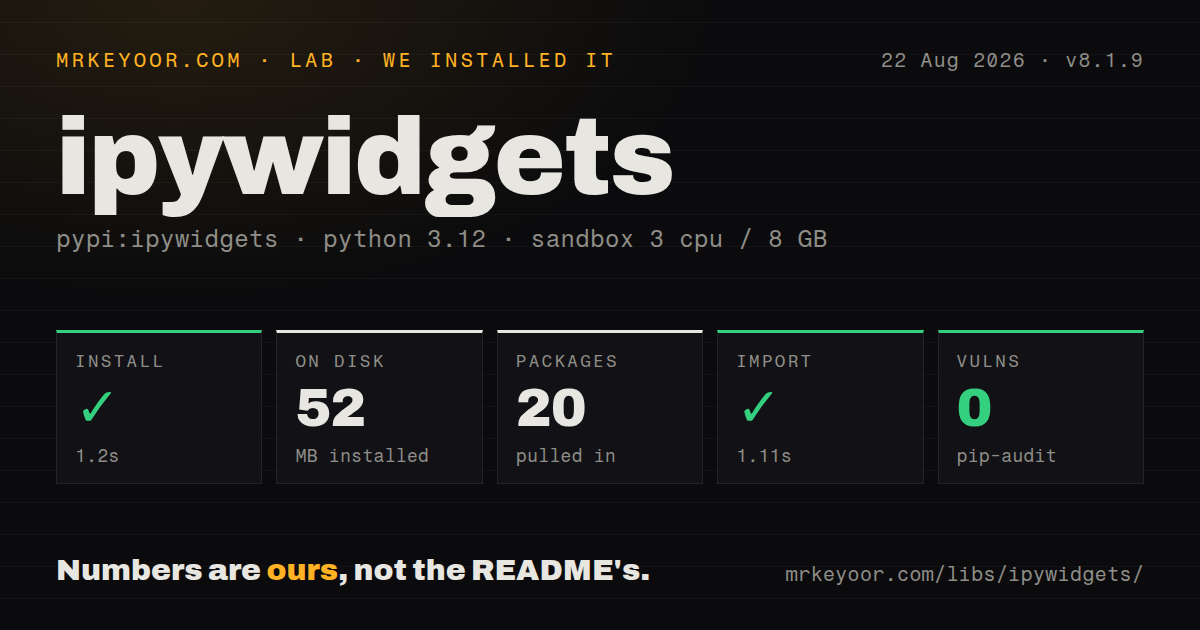
| Install | ✓ · 1.2s | 20 packages on disk · 52 MB |
| Import | ✓ | import ipywidgets in 1.11s · pure Python · requires Python >=3.7 |
| Known vulns | 0 | (pip-audit) |
Answers from our run
Does ipywidgets install cleanly?
Yes. In a fresh container with an empty cache, pip install ipywidgets finished in 1 seconds, leaving 20 packages and 52 MB on disk. pip-audit reported no known vulnerabilities.
What does ipywidgets need to run?
Python >=3.7, and nothing compiled: it is pure Python. In our run import ipywidgets succeeded in 1.11s.
ipywidgets or panel: which should you use?
panel: Choose Panel when notebook code needs a dashboard server and a broader application model across plotting systems. ipywidgets 8.1.9 installed in 1.2 seconds, occupied 52 MB across 20 packages, and had 0 pip-audit findings in our sandbox.
When should you not use ipywidgets?
Skip it when controls must keep running after the kernel disappears. Static embedding retains browser state, but exported Python callbacks cannot execute.
Use it if
- Use it when a Jupyter notebook needs browser controls that read and update live Python state.
- Choose it for exploratory data work where sliders, selectors, and rich results should remain beside the computation cell.
- Adopt it for a teaching or internal notebook that can run behind Voila with code cells hidden.
- Build on it when a custom Jupyter extension can justify maintaining matching Python and browser implementations.
- Skip it when controls must keep running after the kernel disappears. Static embedding retains browser state, but exported Python callbacks cannot execute.
- Do not use FileUpload for large objects. It transfers the complete payload over the notebook connection and holds it in kernel memory.
- Use a web framework for public routing, authentication, durable sessions, and ordinary frontend test boundaries. A widget tree supplies none of those pieces.
- Avoid it when nobody can coordinate kernel and frontend packages. Mismatched ipywidgets, widgetsnbextension, or jupyterlab_widgets versions can leave an empty model view.
- Look elsewhere if inline Python typing is mandatory. Our 8.1.9 distribution had no py.typed, so a checker cannot assume the package implementation is typed.
- Do not put long synchronous jobs directly in callbacks. Their work occupies the kernel and delays later comm messages and screen updates.
Setup reality
We installed ipywidgets 8.1.9 in 1.2 seconds in a fresh Python 3.12 Bookworm container. It left 20 packages and 52 MB on disk. The pure-Python distribution declares 10 direct dependencies, requires Python 3.7 or newer, and does not include py.typed. import ipywidgets succeeded in 1.11 seconds. pip-audit found 0 known vulnerabilities in that environment.
That import checks the kernel package only. Rendering also requires a compatible manager in JupyterLab, Notebook, or another frontend. A normal pip install brings jupyterlab_widgets and widgetsnbextension, but separate server and kernel environments may need packages installed on opposite sides. Restart the Jupyter server and refresh the page after an asset change; a kernel restart cannot replace JavaScript already loaded by the browser.
Callbacks execute after a comm message reaches the kernel. Set continuous_update=False when a slider starts costly work, capture handler output in an Output widget, and remove observers before rebuilding a view. Running a registration cell twice attaches the same function twice. A callback exception can otherwise disappear from the visible cell while the interface appears stuck.
Version 8 FileUpload values are sequences of file records, and each content entry is a memoryview. Version 7 examples that index a dictionary by filename will fail; call tobytes() when the downstream API expects bytes. Static HTML embedding saves the current model state and browser views, yet it cannot execute Python. Voila or another kernel-backed server is required for continued computation.
Patterns
Render an integer slider and inspect it display-value-widget
import ipywidgets as widgets
from IPython.display import display

slider = widgets.IntSlider(
    value=5, min=0, max=100, step=1,
    description='Threshold:',
    continuous_update=False,
)
display(slider)
print(slider.value)
Assigning slider.value updates the browser model as well. continuous_update=False sends one kernel change when the user releases the control.
Watch the value trait and remove the watcher observe-value-change
label = widgets.Label()

def changed(change):
    label.value = f"squared: {change['new'] ** 2}"

slider.observe(changed, names='value')
display(widgets.VBox([slider, label]))

# cleanup
slider.unobserve(changed, names='value')
names='value' excludes unrelated trait traffic. A second execution of the observe line registers another callback unless the first is removed.
Route button results into an Output widget capture-button-output
button = widgets.Button(description='Run', icon='play')
out = widgets.Output()

def clicked(_):
    with out:
        out.clear_output(wait=True)
        print('working...')
        display(do_work())

button.on_click(clicked)
display(widgets.VBox([button, out]))
The Output context captures printed text, display objects, and callback tracebacks. wait=True holds the previous frame until replacement content arrives.
Generate controls for function arguments build-controls-from-function
@widgets.interact_manual(size=(100, 10_000, 100), column=['a', 'b'])
def fit(size, column):
    return train_model(size=size, column=column)
interact_manual runs train_model only after its button is pressed. Explicit widgets are clearer once parameter abbreviations cannot express validation or layout.
Connect two values in the browser link-browser-values
slider = widgets.IntSlider()
number = widgets.IntText()
connection = widgets.jslink((slider, 'value'), (number, 'value'))
display(widgets.HBox([slider, number]))

# cleanup
connection.unlink()
jslink keeps both controls synchronized without a comm round trip, even while the kernel is occupied. widgets.link performs the connection in Python instead.
Convert an 8.x upload record to bytes read-uploaded-file
import io
import pandas as pd

upload = widgets.FileUpload(accept='.csv', multiple=False)

def uploaded(change):
    for item in change['new']:
        raw = item['content'].tobytes()
        display(pd.read_csv(io.BytesIO(raw)).head())

upload.observe(uploaded, names='value')
display(upload)
In version 8, change['new'] is a record sequence and content is a memoryview. The complete CSV also resides in kernel memory.
Place controls in named tabs layout-tabbed-controls
controls = widgets.VBox([
    widgets.IntSlider(description='Rows'),
    widgets.Dropdown(options=['mean', 'median']),
])
notes = widgets.Textarea()
app = widgets.Tab(children=[controls, notes], titles=('Controls', 'Notes'))
display(app)
Version 8 accepts both tab names through the titles constructor argument. Many 7.x examples assign each label later with set_title.
Write a widget snapshot to HTML embed-static-widget
from ipywidgets.embed import embed_minimal_html

slider = widgets.IntSlider(value=42)
embed_minimal_html('snapshot.html', views=[slider], title='Snapshot')
The HTML retains the slider model and browser interaction, but it has no kernel for Python callbacks. Default output may fetch widget JavaScript from a CDN.
Alternatives
| Package | Registry | Pick it when |
|---|---|---|
| panel | PyPI | Choose Panel when notebook code needs a dashboard server and a broader application model across plotting systems. |
| bokeh | PyPI | Choose Bokeh when interactive plots and its server protocol are the application rather than general notebook controls. |
| voila | PyPI | Add Voila when an ipywidgets notebook should hide code cells and serve each user through a live kernel. |
More utils guides
lru-cache · type-fest · ajv · zod · p-limit · find-up · the whole shelf →
How this guide is made: grounded in the library's documentation, release notes, changelog, and issue history, on a fixed rubric — not a hands-on install of every release. The 50 most-downloaded entries are additionally install-verified in clean containers. Corrections: contact the desk.